
Learn how to find and extract Ad IDs in Facebook Ads Manager using the dashboard, URL method, and Marketing API for cleaner tracking and reporting.
Facebook Ads Manager Ad ID Extraction Guide
Every ad you run inside Facebook Ads Manager carries a unique numeric fingerprint called an Ad ID. It looks like a long string of digits, and most marketers scroll right past it. Yet that single number is one of the most useful pieces of data in your entire advertising workflow. It lets you pinpoint a specific creative across reports, connect performance data to external dashboards, troubleshoot delivery issues, and share an exact ad with teammates without confusion. If you have ever tried to describe "that one video ad from the spring campaign" to a colleague, you already understand why a precise identifier matters.
This guide walks through exactly what an Ad ID is, where to find it, and the most reliable methods to extract it. Whether you manage a handful of campaigns or thousands of ads across multiple accounts, mastering Ad ID extraction will make your reporting cleaner and your optimization faster. For more hands-on marketing resources, visit ZoneTechify and WebPeak.
What Is a Facebook Ad ID?
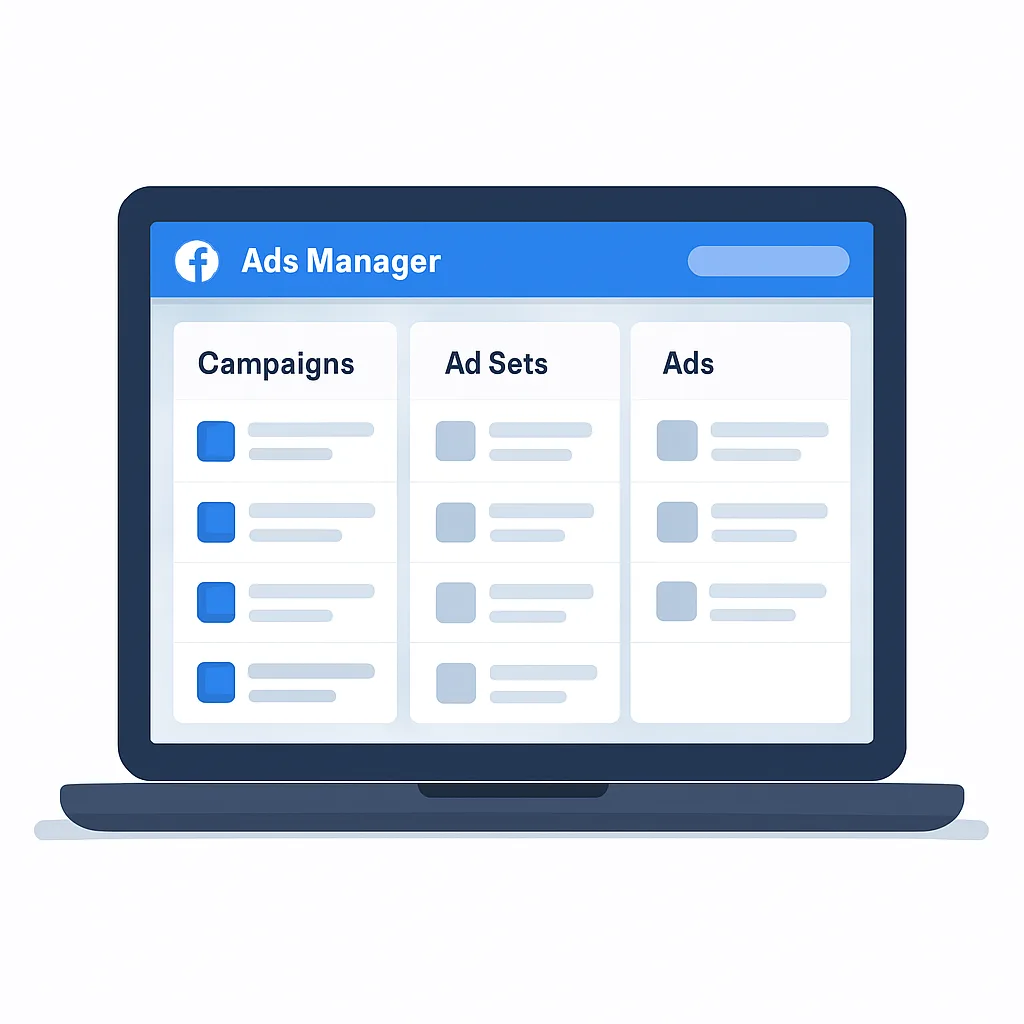
A Facebook Ad ID is a unique, system-generated number that identifies a single ad within the Meta advertising ecosystem. It is not the same as your Campaign ID or Ad Set ID, although the three are related. Think of the structure as a hierarchy: a campaign contains one or more ad sets, and each ad set contains one or more individual ads. Every level has its own distinct ID.
Unlike the ad name, which you choose and can change at any time, the Ad ID never changes once the ad is created. This permanence is exactly what makes it so valuable. Names get edited, duplicated, and confused. The ID stays constant for the life of the ad, giving you a dependable anchor for analytics, automation, and communication.
Why the Ad ID Matters
The Ad ID is the common key that ties together every system that touches your advertising data. When you export reports, the ID lets you match rows across spreadsheets without relying on names that may repeat. When you connect third-party tools or build automated pipelines, the ID is the value those systems use to request data from Meta. And when you scale to hundreds of ads, the ID becomes the only practical way to reference one creative with zero ambiguity.
Where to Find the Ad ID in Ads Manager
The most direct way to find an Ad ID is right inside the Ads Manager interface. Meta has built the identifier into the standard table view, so no special access is required.
Start by opening Ads Manager and navigating to the Ads tab, rather than the Campaigns or Ad Sets tabs. This ensures you are working at the individual ad level. Each row in this table represents one ad, and each one has its own ID.
To display the ID directly in your table, you can customize the columns. Click the Columns dropdown, choose Customize Columns, and search for the identifier fields. You can add columns that show the Ad ID, Ad Set ID, and Campaign ID side by side. Once added, these columns appear in your normal view and in any export you generate, which is enormously helpful for large-scale reporting.
Another quick method is to hover over or click the ad name. In many layouts, a small ID number appears directly beneath the name in the table. You can select and copy it instantly without changing any settings.
Method 1: Extracting the Ad ID From the URL
One of the fastest extraction techniques does not require any column customization at all. It uses the browser URL.
When you click into a specific ad to edit or preview it, the web address in your browser changes to include several parameters. Among them you will see values such as selected_campaign_id, selected_ad_set_id, and selected_ad_id. The number that follows selected_ad_id is exactly the value you want.
To use this method, click the ad you want, look at the address bar, and locate the selected_ad_id parameter. Highlight the digits after the equals sign and copy them. This approach is perfect when you only need one or two IDs quickly and do not want to reconfigure your table layout.
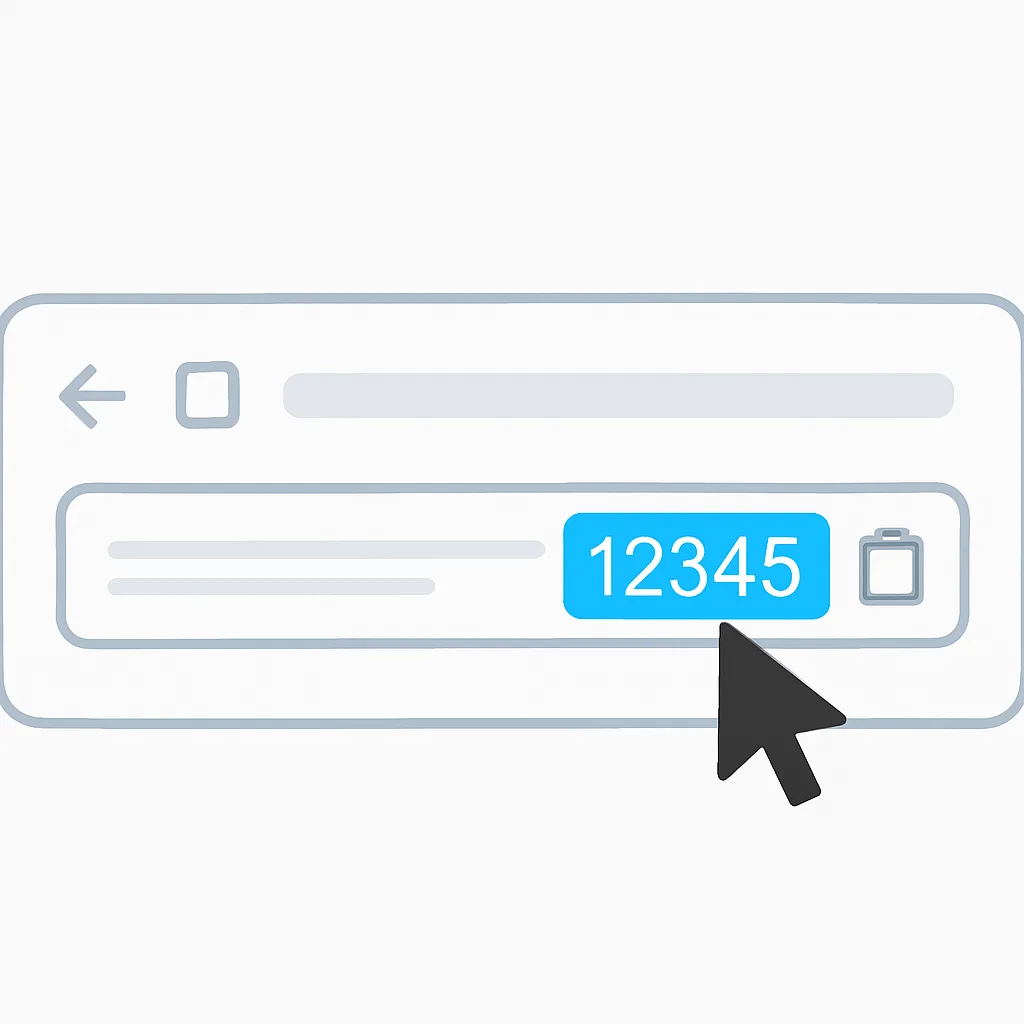
The URL method is reliable because the parameter names are consistent across the Ads Manager interface. The only caution is to make sure you copy the ad ID rather than the ad set or campaign ID, since all three appear in the same URL. Read the parameter labels carefully before copying.
Method 2: Extracting Ad IDs at Scale With Exports
When you need dozens or hundreds of IDs, manual copying becomes impractical. This is where the export feature shines.
First, make sure the Ad ID column is added to your view using the Customize Columns steps described earlier. Then use the Reports or Export option to download your table as a CSV or Excel file. The exported spreadsheet will include the Ad ID column alongside your performance metrics.
From there you can sort, filter, and match the IDs against any other dataset. This is the foundation of serious reporting workflows, because it lets you join Meta data with information from your website analytics, CRM, or business intelligence tools. A well-structured digital marketing process almost always relies on this kind of clean, ID-based data handling.
Method 3: Using the Meta Marketing API
For developers and advanced marketers, the Meta Marketing API offers the most powerful and automated way to extract Ad IDs. Instead of clicking through the interface, you send a programmatic request and receive structured data in return.
A simple request to the ads endpoint of an ad account returns a list of ads, each with its ID, name, status, and associated ad set. Because the response comes back as JSON, you can feed it directly into scripts, databases, or reporting dashboards. This is ideal for agencies and businesses that manage advertising at scale and need fresh data on a recurring schedule.
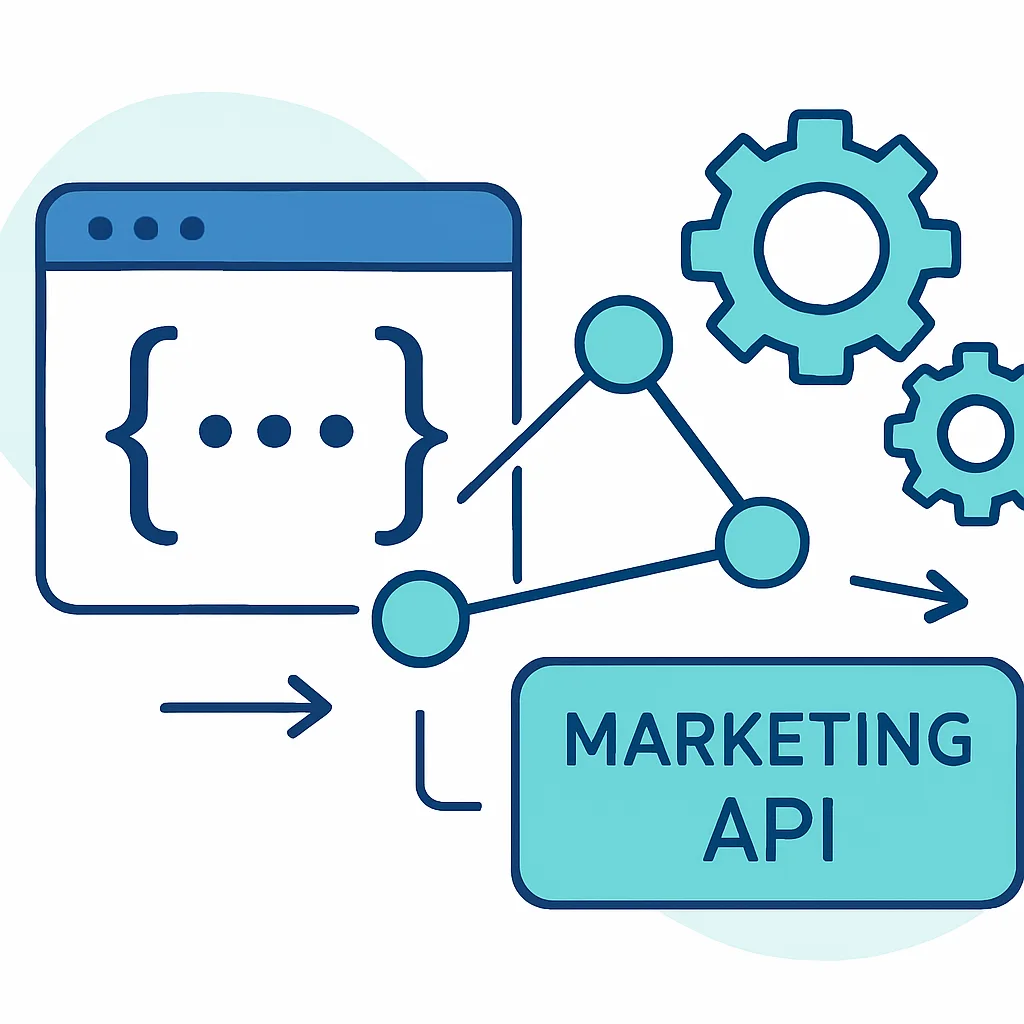
To use the API you need a Meta developer account, an app with the proper permissions, and an access token. While there is a learning curve, the payoff is automation: once your integration is built, Ad IDs flow into your systems without any manual effort. If you would rather not build this yourself, the team at WebPeak can help design a tailored data pipeline.
Common Problems and How to Fix Them
Even with clear methods, a few issues come up regularly. Knowing the fixes saves time and frustration.

| Problem | Likely Cause | Solution |
|---|---|---|
| Cannot see the ID column | Column not added to view | Use Customize Columns to add the Ad ID field |
| Copied wrong number | Ad set or campaign ID confused with ad ID | Check the parameter label before copying |
| ID missing in export | Column not enabled before exporting | Add the column, then re-export |
| API returns no ads | Token lacks permissions | Regenerate token with ads_read access |
| Duplicate names in report | Relying on names instead of IDs | Match rows on the unique Ad ID |
The recurring theme is simple: when names create confusion, the Ad ID resolves it. Building your reports around the ID rather than the name eliminates most data-matching headaches before they start.
Best Practices for Working With Ad IDs
Extracting an Ad ID is only the beginning. To get lasting value, build a few habits into your workflow.
Always store Ad IDs alongside their performance data in your master spreadsheet or database. This creates a permanent record that survives even if you later rename or pause the ad. Use the ID as the primary key whenever you merge Meta data with other sources, since it guarantees accurate matching.
Document your naming convention as well, but treat names as human-friendly labels rather than reliable identifiers. When sharing an ad with a teammate or client, include the ID so there is no ambiguity about which creative you mean. And if you operate at scale, invest in the Marketing API early so your data collection stays consistent and automated as your account grows.
Finally, keep your access tokens secure. The same ID-based access that powers your automation can expose sensitive account data if credentials are mishandled, so store tokens carefully and rotate them when needed.
Conclusion
The Facebook Ad ID is a small number with an outsized impact on your advertising operations. It is the stable, unique key that connects creatives to performance data, links Meta to your external tools, and removes the guesswork from team communication. By learning to extract it from the dashboard, the URL, exports, and the Marketing API, you give yourself a dependable foundation for clean reporting and smarter optimization.
Start with the simple methods, add the Ad ID column to your everyday view, and graduate to the API as your needs grow. With these techniques in hand, you will spend less time hunting for the right ad and more time improving the results that matter. For expert help building out your advertising and analytics systems, explore ZoneTechify and WebPeak.