
A practical guide to how keyword filters work on the BigCommerce support site and how ecommerce stores can copy that model to answer customer questions faster.
BigCommerce Support Site Keyword Filters for Ecommerce Stores
Ecommerce teams lose more revenue to unanswered questions than to unattractive product pages. When a shopper types "change shipping address after order" into a help center and gets nothing useful, the next click is usually a support ticket or a refund request. The BigCommerce support site solves this with keyword filtering: a search layer that narrows thousands of documentation pages down to the handful that match the exact phrasing a merchant used. Understanding how that filter behaves, and how to rebuild the same logic inside your own store, is one of the highest-leverage things a store owner can do this quarter.
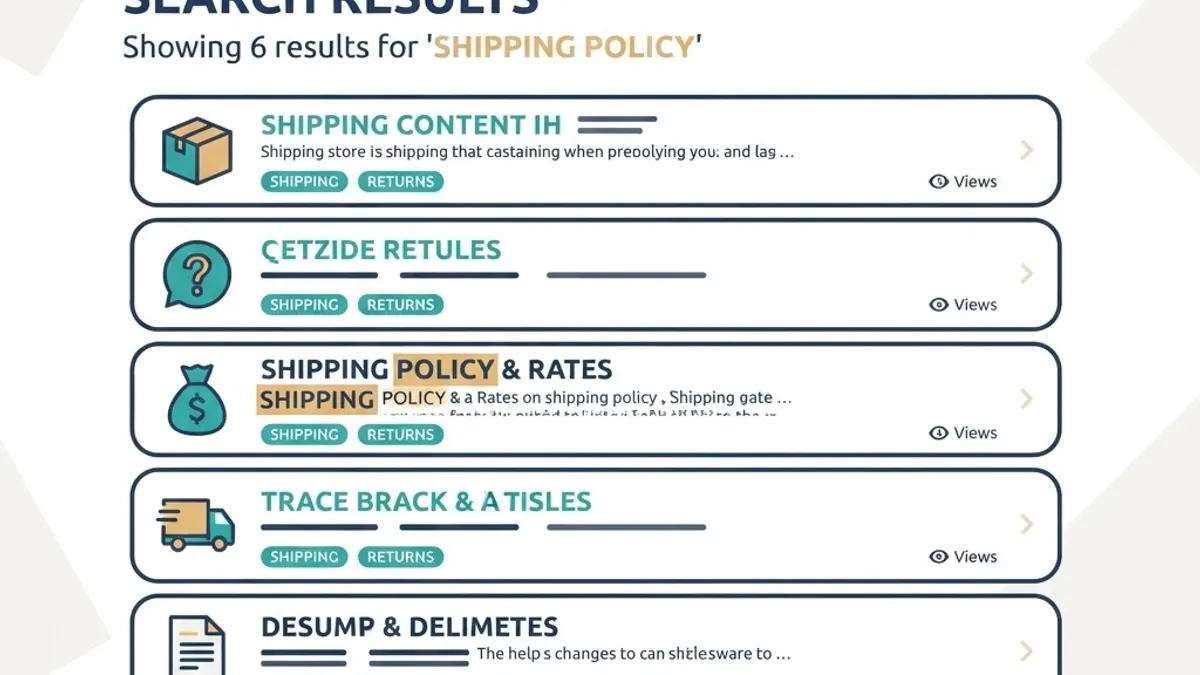
Quick Answer: The BigCommerce support site uses keyword filters to match a merchant question against indexed help articles, then narrows results by category, product area, and article type. Ecommerce stores can copy this model by tagging help content with real customer query language and exposing those tags as filters.
What a Keyword Filter Actually Is on a Support Site
A keyword filter is a search refinement that restricts results to documents containing, or tagged with, specific terms. It is not the same as a search box. The search box retrieves; the filter reduces. On the BigCommerce support site, a query such as "tax" returns dozens of articles, and the filter layer is what lets a merchant cut that to "Tax Settings for a specific region" instead of scrolling through automatic tax, tax classes, and tax overrides.
Three mechanics matter here:
- Indexing decides which words are searchable at all. Titles, headings, and tags are usually weighted higher than body copy.
- Matching decides how loose the comparison is. Exact match is precise but brittle; stemmed or fuzzy match handles plurals, typos, and synonyms.
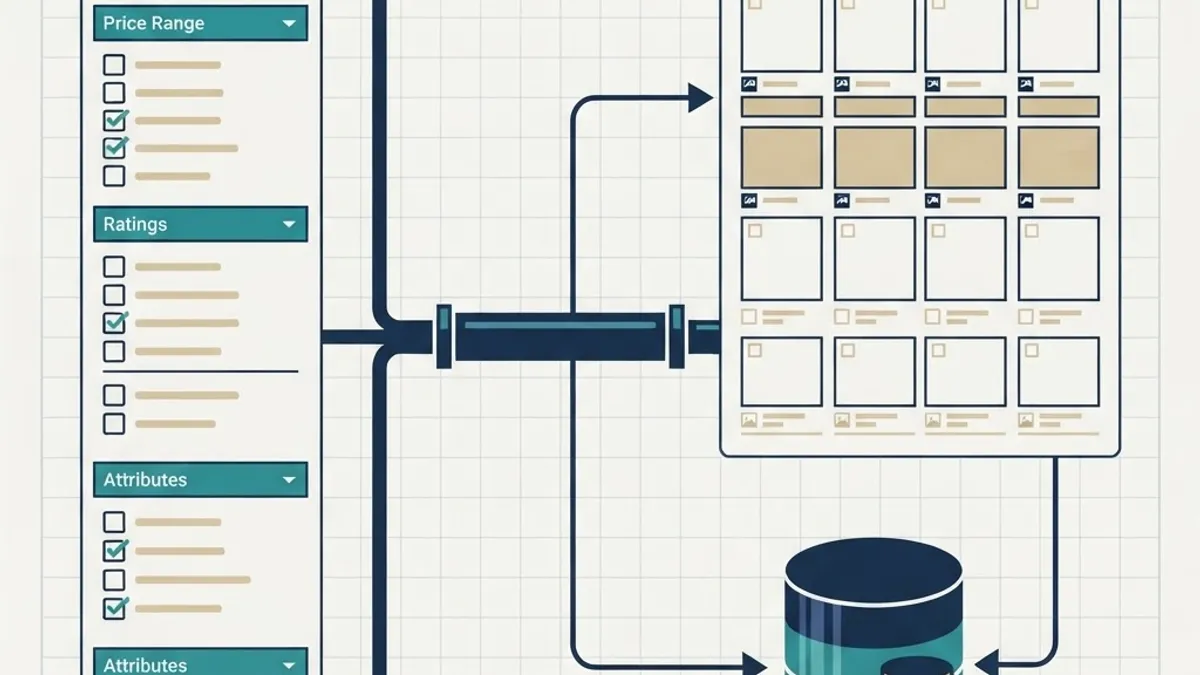
- Faceting decides how results group. Facets are the visible checkboxes, chips, or dropdowns a user clicks.
Most store owners implement step one and skip steps two and three. That is why their help search returns either everything or nothing.
Why This Matters More for Ecommerce Than for Any Other Site Type
Internal site search is a purchase-intent signal, not a navigation convenience. Baymard Institute research on ecommerce search UX has consistently found that a large share of site search implementations fail to handle common query types such as feature searches, symptom searches, and non-product queries, and Baymard reports that roughly 42 percent of sites do not respond usefully to those broader query patterns. Separately, Google Search Central documents that faceted navigation left uncontrolled is one of the most common causes of crawl budget waste on large commerce sites, because every filter combination can generate a new crawlable URL.
Those two facts pull in opposite directions, and that tension is the real problem to solve. You want rich filtering for humans and tightly controlled filtering for crawlers. The BigCommerce support site handles this by keeping its filter state in query parameters that are not treated as primary indexable pages, while the canonical article URLs stay clean and static.
The Four Question Types Every Store Support Search Must Handle
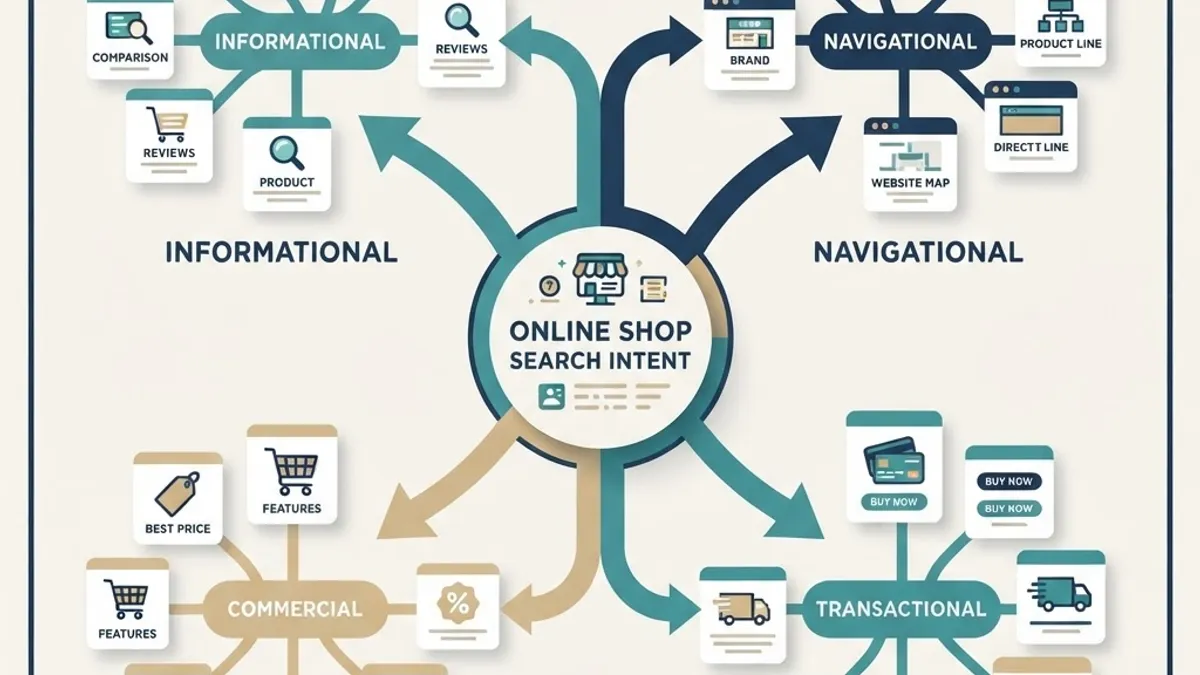
Before configuring any filter, classify what people actually ask. In audits of store help centers, support queries fall into four repeatable buckets:
- Transactional status questions. "Where is my order," "tracking number not working," "has my refund been issued."
- Policy questions. "Return window," "international duties," "warranty length."
- Product capability questions. "Does this fit," "is it dishwasher safe," "which size for a 6 foot frame."
- Account and checkout failure questions. "Card declined," "cannot log in," "discount code rejected."
Each bucket needs its own filter facet, because the resolution path is different. A status question needs a lookup tool, not an article. A policy question needs one authoritative page. Mixing them into a single undifferentiated list is the most common help center design error.
How to Configure Keyword Filters Inside a BigCommerce Store
BigCommerce exposes product filtering natively through Product Filtering, also known as faceted search, on supported plans, and it exposes search behavior through the storefront search settings and the GraphQL Storefront API. Your help content usually lives in web pages or blog posts rather than in the product catalog, so the practical pattern is a hybrid.
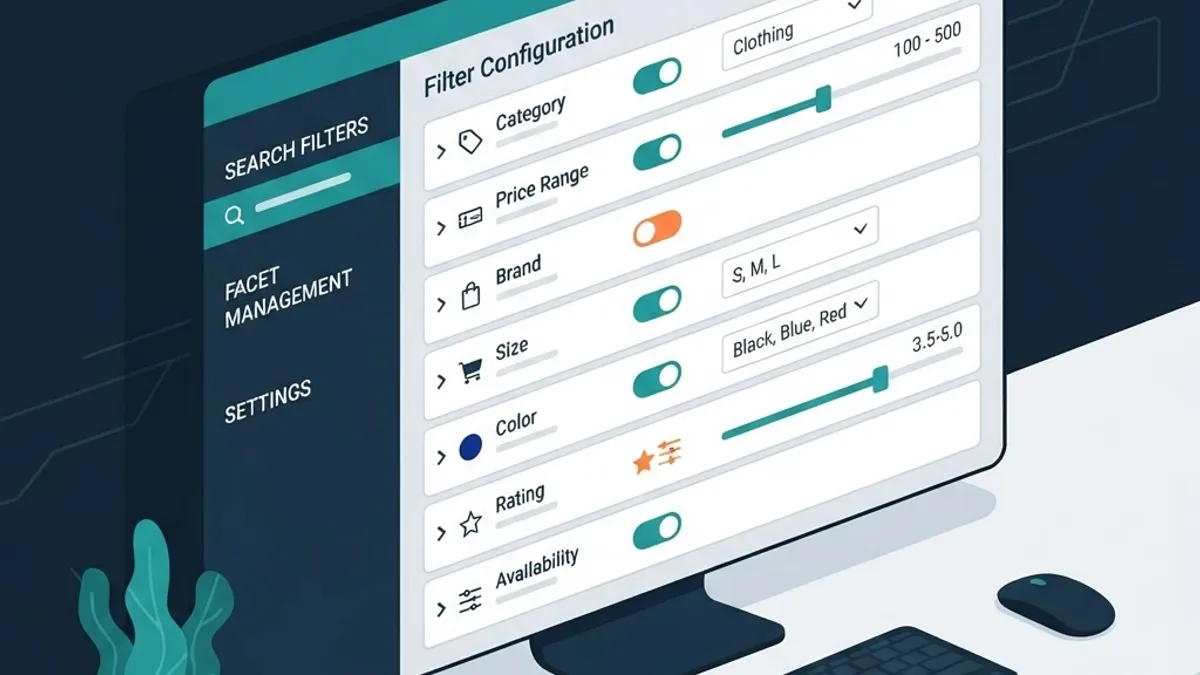
A configuration sequence that holds up in production:
- Build a query log first. Enable internal site search tracking in Google Analytics 4 or your search provider, and collect at least 30 days of real queries before you design anything.
- Tag every help page with the literal query language. If customers type "parcel stuck in customs," the tag is that phrase, not "logistics."
- Create facets from the four question buckets above, plus one facet for product line if your catalog spans very different categories.
- Enable synonym mapping. Map "refund" to "return," "delivery" to "shipping," "coupon" to "discount code." This single step usually cuts zero-result searches noticeably.
- Set a zero-result fallback. Never show an empty page. Show the top five most-viewed articles plus a contact route.
- Control crawl exposure. Canonicalize filtered URLs to the unfiltered version, and use robots rules for parameter combinations you do not want indexed.
Native Filtering vs Custom Search: A Direct Comparison
| Factor | Native BigCommerce Product Filtering | Third-Party Search App | Custom Headless Search Layer |
|---|---|---|---|
| Setup effort | Low, dashboard driven | Low to medium | High, requires developers |
| Works on help or blog content | Limited | Usually yes | Yes, fully controlled |
| Synonym and typo handling | Basic | Strong | Strong, fully tunable |
| Ongoing cost | Included in plan tier | Monthly subscription | Build plus hosting |
| SEO control over filter URLs | Moderate | Varies by vendor | Complete |
| Best fit | Catalogs under a few thousand SKUs | Mid-market stores | Large or multi-region stores |
The honest recommendation: start native, measure zero-result rate, and only move to a custom layer when your query log proves the native matcher is failing on more than a small share of searches. Teams that skip straight to a headless rebuild usually spend a quarter solving a tagging problem with infrastructure.
Measuring Whether Your Filters Are Working
Filters feel subjective until you attach numbers to them. Track four metrics weekly:
- Zero-result rate. Percentage of searches returning nothing. Target a steady decline month over month.
- Search refinement rate. How often a user searches again immediately. High values mean the first result set missed.
- Search-to-ticket rate. Percentage of searchers who still open a support ticket. This is the metric that maps directly to support cost.
- Search-to-conversion rate. Searchers who complete a purchase. Site searchers typically convert at a meaningfully higher rate than non-searchers, which is exactly why help search deserves budget.
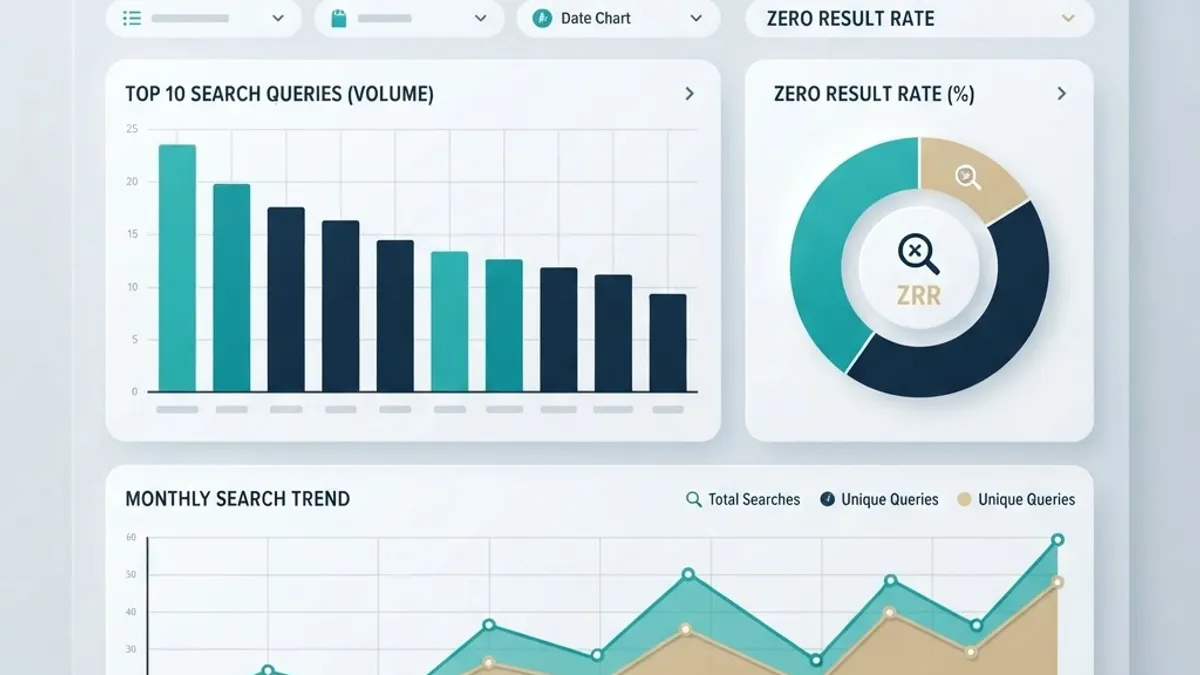
One pattern worth naming, because it rarely appears in generic advice: the queries with the highest zero-result rate are usually your best new-article ideas, and they are also frequently untapped organic keywords. A help article written for "card declined at checkout BigCommerce" serves an existing customer and captures search demand at the same time. Teams that treat their support query log as a keyword research source, an approach used across online marketing services engagements, build content libraries that pay twice.
Structuring Help Content So Filters Have Something to Grab
A filter can only be as good as the content beneath it. Structure each help article around a single question, with the question itself as the H1. Put the direct answer in the first 60 words. Add a short steps list when the resolution is procedural. Close with related articles so the filter is not the only navigation path.
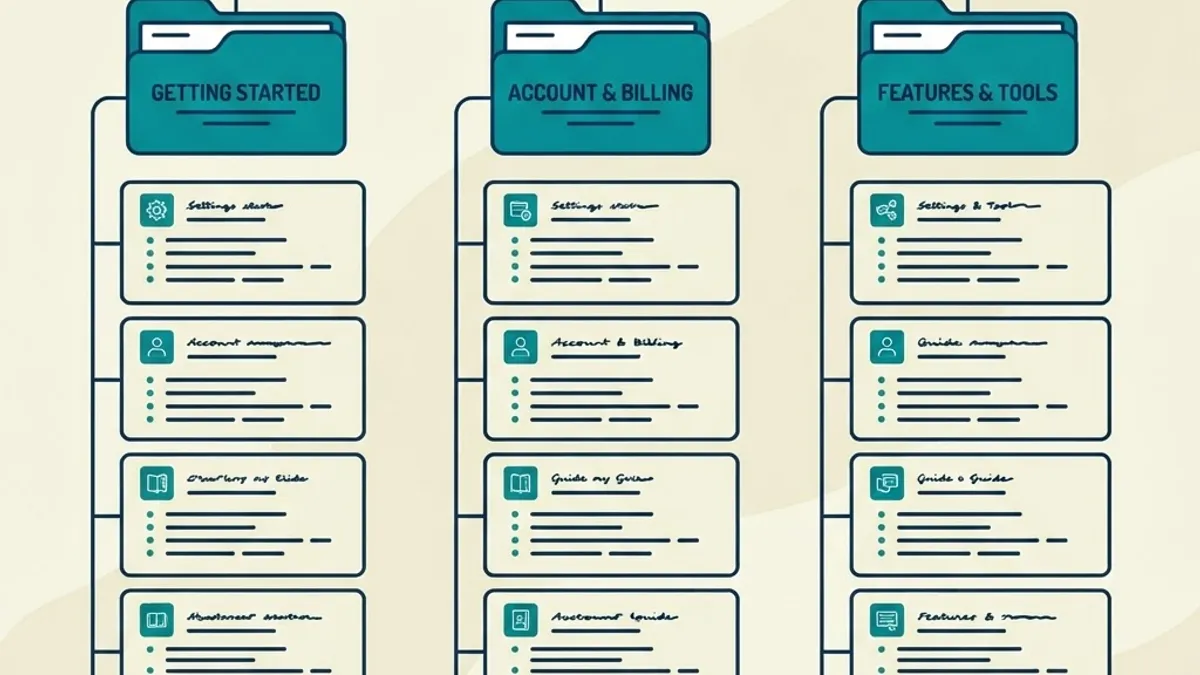
Avoid combined articles. A page titled "Shipping, Returns and Exchanges" is invisible to a keyword filter because it dilutes every term it contains. Three separate pages will each rank and filter cleanly. This principle also explains why category taxonomy decisions ripple outward across a store, a point examined in more depth in this read more breakdown of ecommerce classification.
For stores that need this designed and shipped rather than researched, ZoneTechify handles support architecture alongside storefront work, and data-driven marketing specialists at WebPeak apply the same query-log methodology to demand capture.
A 30-Day Implementation Plan

- Days 1 to 7: Turn on search tracking. Export existing tickets and group them into the four question buckets. Do not build anything yet.
- Days 8 to 14: Write or rewrite the ten highest-volume help articles as single-question pages. Tag each with literal customer phrasing.
- Days 15 to 21: Configure facets and synonyms. Add a zero-result fallback panel.
- Days 22 to 30: Set canonicals and robots rules on filtered URLs. Record your baseline four metrics, then review them every week after.
This sequence works because it puts measurement before construction. Most failed help center projects invert that order and end up filtering content nobody was looking for.
Key Takeaways
- A keyword filter reduces search results; a search box retrieves them. Ecommerce stores need both layers working together.
- Baymard Institute research shows a large share of ecommerce sites, around 42 percent, mishandle non-product and feature-level queries.
- Google Search Central identifies uncontrolled faceted navigation as a leading cause of crawl budget waste on large commerce sites.
- Support questions cluster into four types: status, policy, product capability, and account or checkout failure. Each needs its own facet.
- Synonym mapping and a zero-result fallback are the two lowest-effort, highest-impact filter improvements.
- High zero-result queries are the strongest signal for both new help content and new organic keyword targets.
- Start with native BigCommerce filtering and only invest in a custom search layer once query data proves the need.
Frequently Asked Questions (FAQ)
How do I search the BigCommerce support site more effectively?
Use short, literal phrases describing the action you want, such as "add tax override" rather than "tax help." Then apply the category and article type filters to narrow results. If nothing matches, try a synonym like "shipping" instead of "delivery," since indexes weight exact terms heavily.
Can I add keyword filters to my own BigCommerce store help pages?
Yes. Native Product Filtering covers catalog pages, so help and blog content usually needs a search app or a custom layer built on the GraphQL Storefront API. Tag each help page with real customer phrasing first, because filters can only surface terms that exist in your index.
Do filter URLs hurt my ecommerce SEO?
They can. Uncontrolled filter combinations generate near-duplicate crawlable URLs and waste crawl budget, which Google documents as a common large-site issue. Fix it by canonicalizing filtered pages to the unfiltered version and blocking parameter combinations you never want indexed in robots rules.
What is a good zero-result search rate for an ecommerce store?
There is no universal number, so measure your own baseline and drive it down. Any query returning nothing is a lost sale or a support ticket. Review the zero-result list weekly, add synonyms for near misses, and write new help articles for genuine content gaps.
Should I use one long help article or several short ones?
Several short ones. A combined page dilutes every keyword it contains, so filters and search engines both struggle to match it. One question per page, with the answer in the first 60 words, performs better in internal search, featured snippets, and AI answer engines alike.
How often should I review my support search data?
Weekly for the first quarter, then monthly. Watch zero-result rate, refinement rate, search-to-ticket rate, and search-to-conversion rate together. Seasonal spikes in shipping and returns queries appear fast, and updating filters and articles ahead of peak periods prevents avoidable ticket volume.