A practical guide to custom desktop application development in 2026 — when desktop beats web, framework trade-offs, real cost drivers, security, and deployment.
Custom Desktop Application Development
Custom desktop application development is the practice of building software that installs and runs directly on a user's Windows, macOS, or Linux machine, purpose-built for one organization's workflow rather than sold as a generic product. Despite a decade of "everything moves to the browser" predictions, desktop software never left. It quietly runs trading floors, hospital imaging rooms, CNC shops, video studios, and every warehouse where the Wi-Fi drops behind the metal racking.
This guide explains exactly when a desktop app is the correct engineering decision, which frameworks hold up in production, what actually drives cost, and how to ship and maintain the thing after launch. It is written from the perspective of teams who have had to support installed software on machines they cannot physically reach.
Quick Answer: Custom desktop application development means building installable software tailored to one organization's specific workflow. Choose it when you need offline reliability, direct hardware or filesystem access, heavy local computation, or strict data residency. Typical projects run 3 to 9 months and use Electron, Tauri, .NET, Qt, or native SDKs depending on performance and platform needs.
What Counts as a Custom Desktop Application?
A custom desktop application is compiled or packaged software distributed as an installer (.exe, .msi, .dmg, .deb, .AppImage) that executes on the local operating system with access to native APIs. Three properties separate it from a web app in a browser tab:
- Local execution. Business logic runs on the user's CPU, not a remote server, so latency is measured in microseconds instead of network round trips.
- Native OS integration. File dialogs, drag-and-drop from Explorer or Finder, printers, USB and serial devices, system tray, global keyboard shortcuts, background services, and OS notifications.
- Independent lifecycle. The app keeps working when the internet does not, and it updates on your release schedule rather than on every page load.
"Custom" is the second half of the definition. Off-the-shelf desktop software forces your process to match the vendor's assumptions. Custom software encodes your process — your approval chain, your pricing rules, your inspection checklist — as the shortest possible path through the UI.
Desktop vs Web vs Hybrid: Choosing Correctly
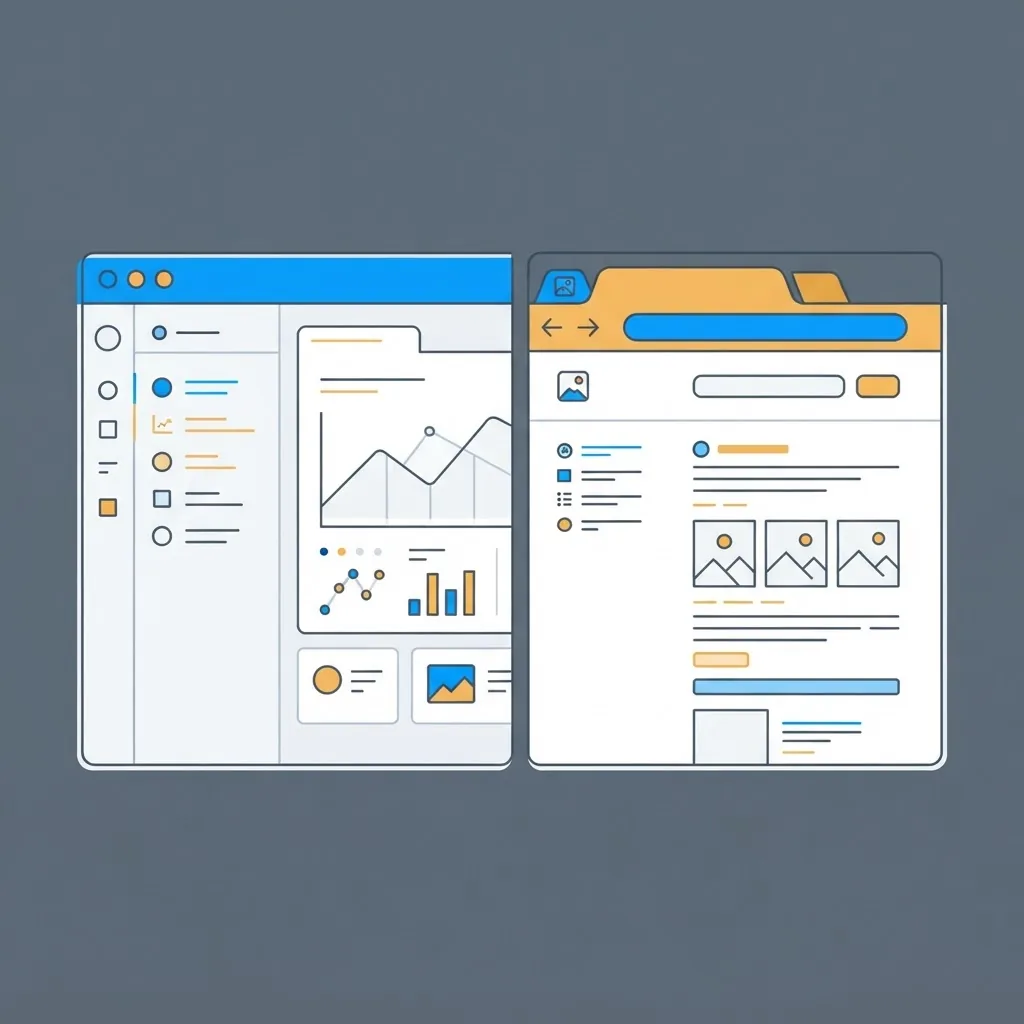
The honest answer is that most organizations need both, but the primary interface should follow the constraint that hurts most. Web apps win on distribution and instant updates. Desktop apps win on reliability, hardware, and raw local performance.
| Requirement | Desktop App | Web App | Hybrid (Desktop + Cloud Sync) |
|---|---|---|---|
| Works fully offline | Yes | Limited | Yes |
| USB, serial, scanner, camera SDK access | Yes | Partial | Yes |
| Heavy local compute (video, CAD, ML, large datasets) | Yes | No | Yes |
| Zero-install access from any device | No | Yes | No |
| Instant updates for all users | No | Yes | Partial |
| Multi-gigabyte local file handling | Yes | No | Yes |
| Keeps sensitive data on-premise | Yes | Depends | Configurable |
| Cross-team collaboration in real time | Harder | Easy | Easy |
Use this decision rule: if losing connectivity for one hour would stop revenue or endanger safety, build desktop-first with cloud sync. If the main pain is getting software into the hands of thousands of casual users, build web-first. If you need both, build the domain logic in a shared, platform-agnostic layer so the same rules power a desktop shell and a browser client. Teams at ZoneTechify frequently start with this shared-core structure precisely because it prevents a rewrite eighteen months later.
Framework Options That Hold Up in Production
Framework choice determines your install size, memory footprint, hiring pool, and long-term maintenance cost more than any other decision. There is no universal winner.

Electron
Chromium plus Node.js in one bundle. Best when you already have a strong web team, need pixel-identical UI across three operating systems, and can accept installers in the 80 to 150 MB range with 150 to 400 MB of RAM at idle. VS Code, Slack, and Figma's desktop client prove it scales to serious products. The trade-off is resource cost and a Chromium version you must keep patched.
Tauri
A Rust backend paired with the operating system's own webview. Installers commonly land between 3 and 10 MB with far lower idle memory, because there is no bundled browser. The catch is real: you are testing against WebView2 on Windows and WebKit on macOS and Linux, so rendering differences appear in edge cases. Excellent for lightweight utilities, secure clients, and anything distributed to older hardware.
.NET (WPF, WinUI 3, or MAUI)
The pragmatic default for Windows-first enterprise software, especially where Active Directory, SQL Server, Office interop, or existing C# services are already in play. Mature tooling, excellent debugging, and a deep hiring pool. WPF remains the safest choice for dense, data-heavy internal tools.
Qt and C++
The choice for engineering, medical, industrial, and instrumentation software where you control the hardware and need deterministic performance with a 10-year support horizon. Higher development cost per feature, dramatically better longevity and real-time behavior.
Swift and SwiftUI or Kotlin Multiplatform
Go fully native when the app must feel indistinguishable from the platform, use the newest OS APIs on day one, or ship through the Mac App Store with the smoothest review path.
Practical rule: pick the stack your team can still maintain in five years. A technically superior framework nobody on staff can debug at 2 a.m. is the more expensive option.
The Development Process That Actually Reduces Risk
Desktop projects fail on integration surprises, not on UI work. Sequence the work so the riskiest unknowns get resolved first.
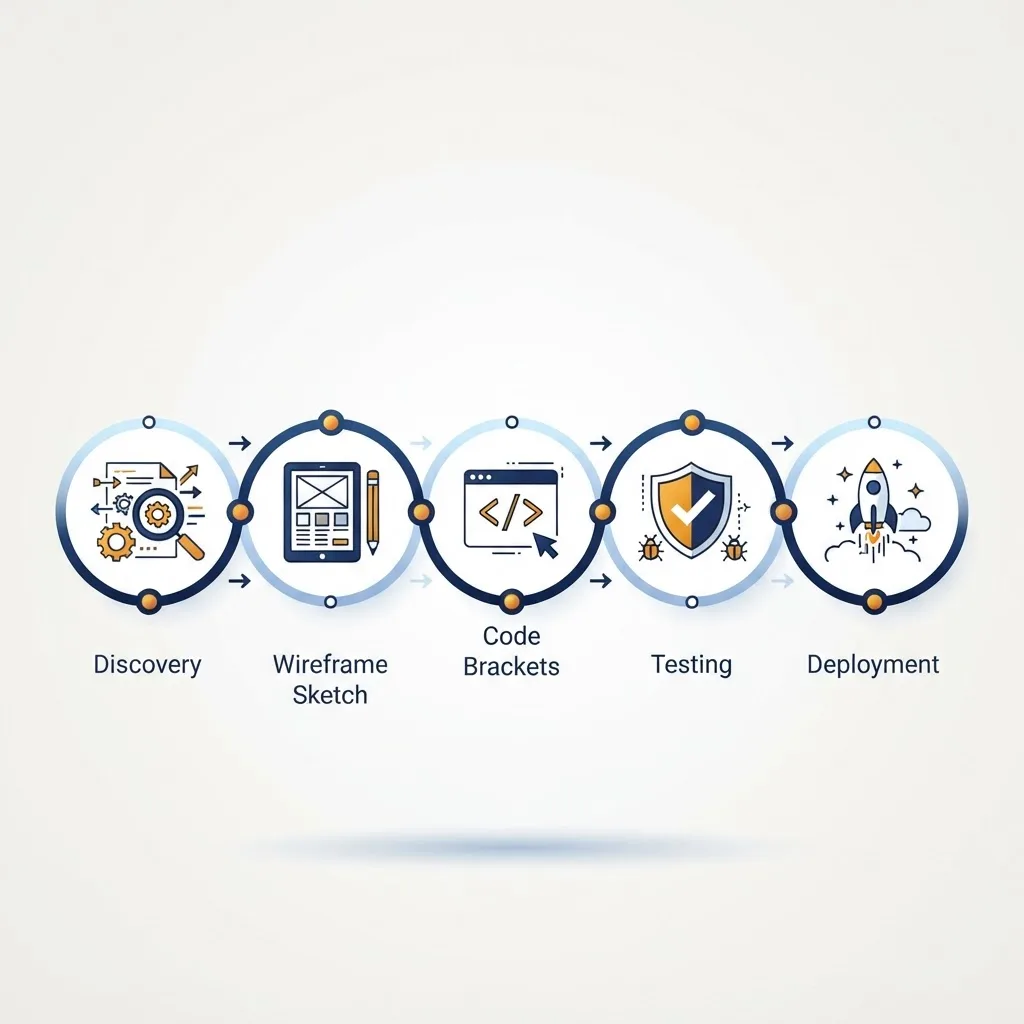
- Workflow discovery on site. Watch the real users work for a full shift. Record how many clicks, how many paper notes, and where they abandon the current system. This is where the requirements you would never have guessed actually surface.
- Spike the hard integration first. Before any screen design, write a throwaway program that talks to the scale, scanner, PLC, legacy database, or licensing dongle. If it cannot be done, you learn in week one instead of month five.
- Interactive prototype. A clickable prototype validated by three actual operators removes more waste than any specification document.
- Architecture and data model. Decide the local storage engine (SQLite is the default for good reason), the sync strategy, and the module boundaries.
- Vertical slice builds. Ship one complete workflow end to end, installer included, in the first month. Then repeat.
- Test on the real fleet. Old Windows builds, locked-down group policies, 1366x768 screens, non-English locales, and antivirus software that quarantines your unsigned binary.
- Release, telemetry, and iteration. Ship with crash reporting and opt-in usage analytics from version one, or you will be debugging blind.
A realistic timeline for a focused internal tool with one or two integrations is 3 to 5 months. Multi-module platforms with hardware control, role-based permissions, and reporting typically run 6 to 12 months. If a proposal promises a complex integrated desktop platform in six weeks, the discovery and testing phases have been silently deleted.
Offline-First Architecture and Data Sync
Offline capability is the single most common reason organizations choose desktop, and it is also the most common source of post-launch bugs. Treat the local database as the source of truth for the user session, and treat the server as an eventual reconciliation target.
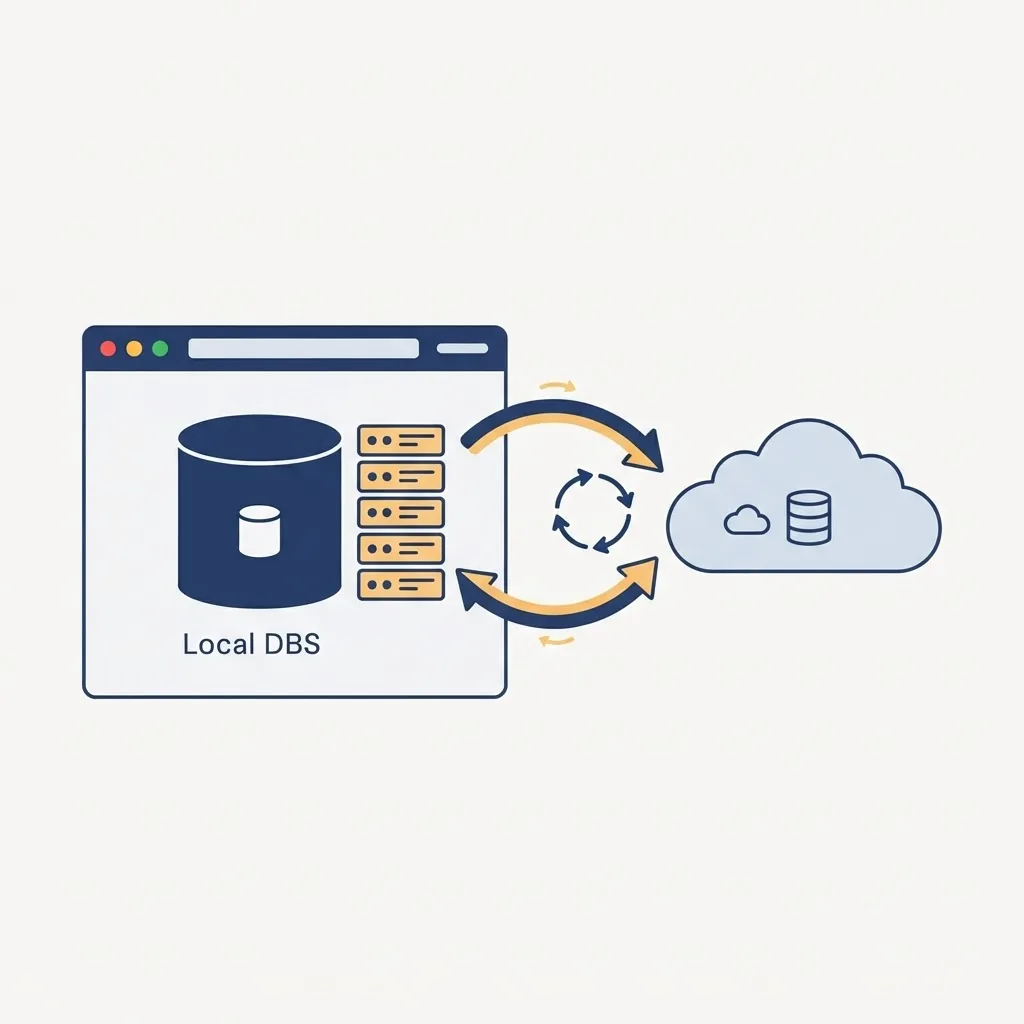
Four patterns that consistently work:
- Local SQLite with a write-ahead log. Fast, transactional, single-file, and trivially backed up.
- An outbox queue. Every local mutation is appended to a durable queue with a client-generated ID, so retries after a crash never duplicate records.
- Explicit conflict rules per entity, decided by the business. Last-write-wins is acceptable for a note field and unacceptable for inventory counts, where you want either a server-authoritative merge or a human review queue.
- Visible sync state. Show pending, syncing, synced, and failed. Users tolerate delay; they do not tolerate uncertainty about whether their work was saved.
According to Google's Web Vitals research, users perceive interactions as instant only under roughly 100 milliseconds of response time — a threshold local-first desktop apps meet naturally on every read, because there is no network in the path.
Security, Signing, and Compliance
Installed software runs with the user's privileges on a machine you do not control, which changes the threat model completely.

Non-negotiables for any production desktop app:
- Code signing on every platform. An Authenticode certificate for Windows and Apple notarization for macOS. Unsigned installers trigger SmartScreen and Gatekeeper warnings that destroy user trust and generate support tickets immediately.
- Encrypt local data at rest. Use OS keychains — DPAPI on Windows, Keychain on macOS, Secret Service on Linux — for credentials and tokens. Never store secrets in a plaintext config file next to the executable, and never embed API keys in the shipped binary, where anyone can extract them in minutes.
- Assume the client is hostile. Any rule that protects money or data must be enforced server-side as well. Client-side validation is a usability feature, not a security control.
- Signed, verified auto-updates over HTTPS. An update channel without signature verification is a remote code execution path into your customers' networks.
- Least privilege. Do not require administrator rights for normal operation. Restrict elevation to the installer.
- Dependency hygiene. IBM's Cost of a Data Breach research has repeatedly put the global average breach cost in the multi-million-dollar range, and unpatched third-party components remain a leading entry point. Automate dependency scanning in your build pipeline.
Interface Design for Professional Desktop Software
Desktop users are usually repeat users, often eight hours a day. That changes design priorities away from onboarding delight toward throughput.
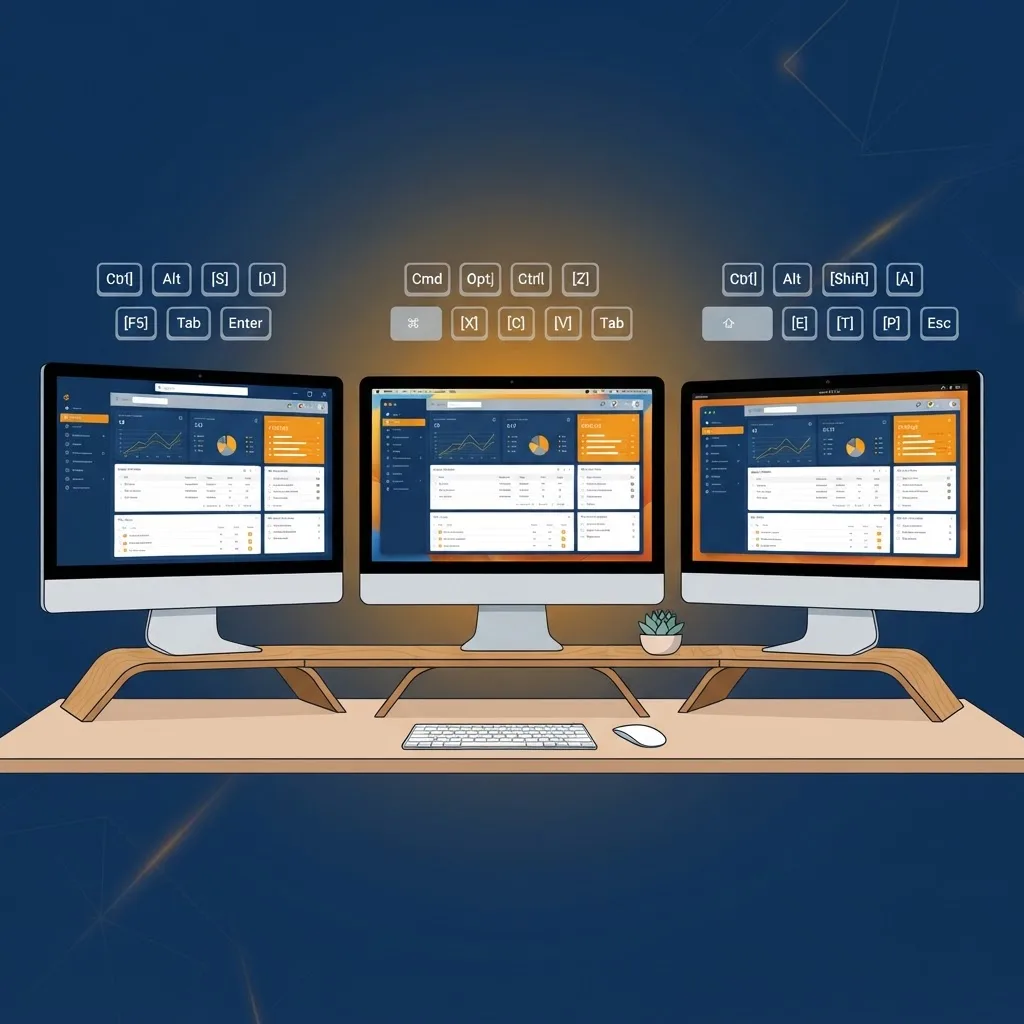
- Full keyboard operability. Every frequent action needs a shortcut, and tab order must be deliberate. Power users measure your software in keystrokes.
- Information density over whitespace. A warehouse supervisor wants 40 rows visible, not 8 beautifully spaced cards.
- Respect platform conventions. Command versus Ctrl, menu bar placement, native file dialogs, and system dark mode. Fighting the OS makes software feel cheap.
- Persist window state and user preferences across sessions, per monitor.
- Virtualize long lists so a 500,000-row table scrolls at 60 frames per second.
- Never block the UI thread. Long operations belong on background workers with progress and cancellation.
For teams that need this interaction depth combined with modern engineering practices, specialist web application development teams often build the shared business-logic core once and wrap it in both a desktop shell and a browser client. Independent technical resources such as WebPeak are also useful for pressure-testing architecture decisions before you commit budget.
Deployment, Updates, and Total Cost of Ownership
Shipping version 1.0 is roughly 60 percent of the lifetime work. Budget for the rest deliberately.
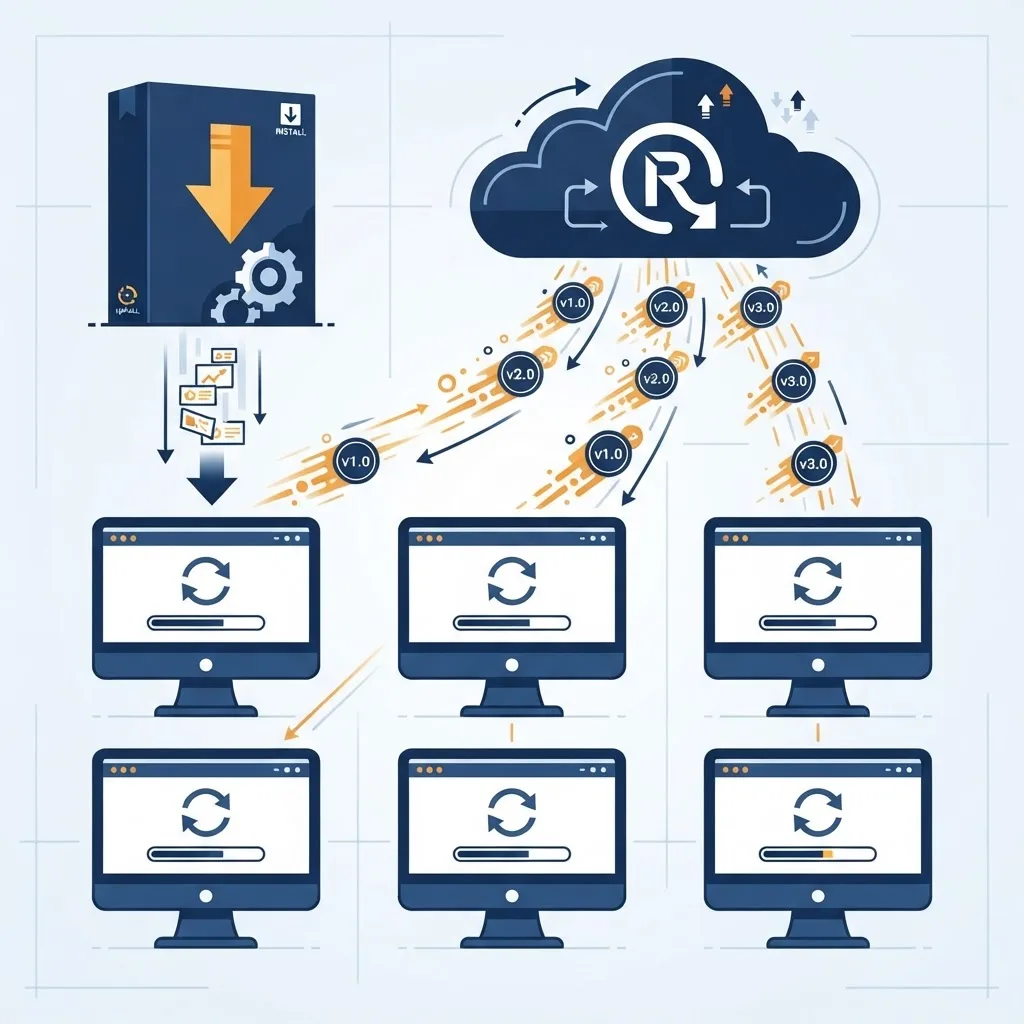
Distribution options: direct signed download, MSI or MSIX pushed through Intune or SCCM for enterprises, Homebrew or PKG on macOS, .deb and AppImage on Linux, or the Microsoft Store and Mac App Store when you want managed billing and review-based trust.
Update strategy: silent background updates with a staged rollout percentage, plus a manual channel for regulated environments where IT must approve each version. Always keep the previous version installable so a bad release can be rolled back the same day.
Recurring cost drivers to plan for:
- Code-signing certificate renewals and Apple developer program fees
- Annual OS releases that break assumptions, twice a year on Windows and once on macOS
- Framework and dependency security patches
- Crash triage and telemetry review
- Support for the long tail of hardware and locales
A reasonable planning figure is 15 to 25 percent of the original build cost per year for maintenance on an actively used business application. Software that receives zero maintenance budget becomes a liability in about three years, usually the moment an OS update breaks it.
Key Takeaways
- Custom desktop application development is the right call when offline reliability, hardware access, heavy local computation, or on-premise data residency are hard requirements.
- Electron trades install size and memory for UI consistency; Tauri ships 3 to 10 MB installers using the OS webview; .NET dominates Windows enterprise work; Qt and C++ suit long-lived industrial and medical systems.
- Resolve the riskiest hardware or legacy integration in week one, before any screen design, to avoid discovering a blocker mid-project.
- Local-first architecture with SQLite, a durable outbox queue, per-entity conflict rules, and visible sync status is the proven pattern for offline reliability.
- Code signing, notarization, OS keychain storage, and signed auto-updates are mandatory, not optional polish.
- Typical timelines run 3 to 5 months for a focused tool and 6 to 12 months for a multi-module platform, with 15 to 25 percent of build cost per year for maintenance.
Frequently Asked Questions (FAQ)
How much does custom desktop application development cost?
Cost depends on integration count, not screen count. A focused single-workflow internal tool generally sits in the low five figures, while a multi-module platform with hardware control, permissions, and reporting reaches six figures. Hardware integrations, regulatory compliance, and support for three operating systems are the three largest cost multipliers.
How long does it take to build a custom desktop app?
Plan 3 to 5 months for a focused tool with one or two integrations, and 6 to 12 months for a platform with multiple modules, role-based permissions, and reporting. Discovery, hardware integration spikes, and real-fleet testing consume more calendar time than building the user interface does.
Should I choose Electron or Tauri for my desktop application?
Choose Electron when UI consistency across all platforms matters most and your team is already strong in web technologies. Choose Tauri when install size, memory footprint, and startup speed matter more, and your team can handle Rust plus webview differences between Windows WebView2 and WebKit.
Can a desktop application work completely offline?
Yes. Store data in a local database such as SQLite, queue every change in a durable outbox, and sync when connectivity returns. Define conflict resolution rules per entity before launch, and always display sync status in the interface so users know exactly whether their work has been saved.
Is desktop software still relevant compared to web apps?
Absolutely. Desktop software remains dominant wherever offline reliability, USB or serial hardware access, multi-gigabyte file processing, or strict on-premise data residency are required. Manufacturing, healthcare imaging, media production, engineering, and field operations all continue to depend on installed applications daily.
Do I need code signing for my desktop application?
Yes, on every platform. Without an Authenticode certificate on Windows and Apple notarization on macOS, users see SmartScreen and Gatekeeper security warnings that block installation and generate immediate support tickets. Signing also secures your auto-update channel against tampering, which is a genuine security requirement.
Final Word
The strongest desktop projects share one trait: the team resolved the ugliest technical unknown before designing a single screen, then invested in signing, updates, and telemetry from version one. Get the framework choice matched to your team's actual skills, make the local database authoritative for the user's session, and budget honestly for maintenance. Do those four things and a custom desktop application will outlive the browser tab it replaced.