A practical, tested comparison of the best AI coding assistants for beginners in 2026, including setup steps, pricing, learning risks, and how to use them without losing core programming skills.
Best AI Coding Assistant for Beginners 2026
Most "best AI coding assistant" lists are written for senior engineers shipping microservices. Beginners need something different: a tool that explains why code works, fails loudly instead of silently, and does not autocomplete you into a codebase you cannot debug. This guide ranks the options based on how they actually behave when the person typing has less than a year of experience.
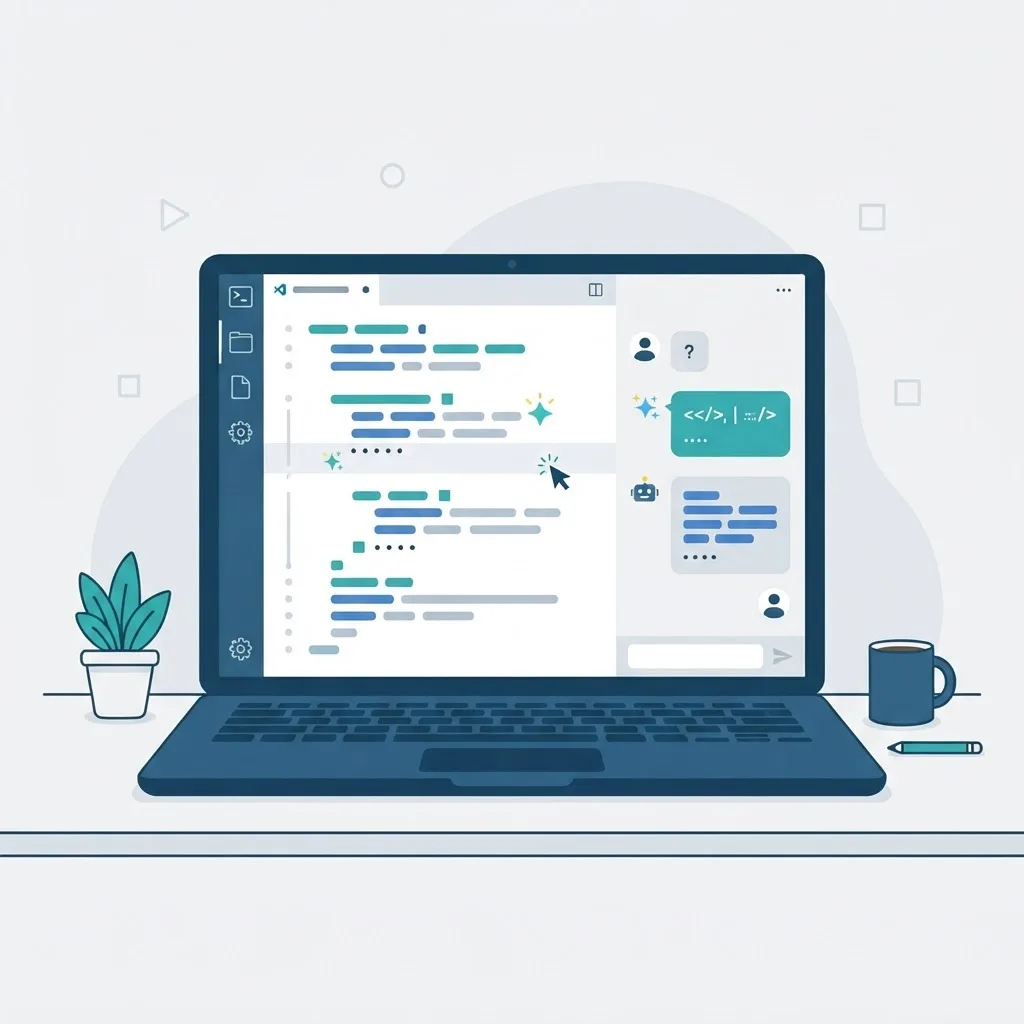
Quick Answer: For most beginners in 2026, GitHub Copilot inside VS Code is the best AI coding assistant because it is cheap, free for verified students, and keeps you writing code rather than generating whole apps. Cursor is the better pick once you can read a full file and review diffs confidently.
What an AI Coding Assistant Actually Is
An AI coding assistant is a tool that uses a large language model to complete code as you type, answer questions about your codebase, explain errors, and in newer "agent" modes edit multiple files on your behalf. It is not a compiler, a linter, or a search engine, and it has no guaranteed knowledge of your project's requirements.
There are three distinct modes beginners should learn to tell apart:
- Inline completion (ghost text) — suggests the next few lines while you type. Lowest risk, highest learning value.
- Chat / ask mode — you ask a question about selected code and get an explanation. Best mode for beginners.
- Agent mode — the assistant plans and edits many files at once. Highest risk for beginners because you approve changes you may not understand.
The single biggest mistake new developers make is jumping straight to agent mode. GitHub's own 2024 research found developers using Copilot completed a specified task 55% faster than those without it — but that study used experienced developers who could evaluate output. Speed without evaluation skill is just faster technical debt.
Why 2026 Is Different for Beginners
Three things changed that directly affect learners. First, free tiers became genuinely usable — GitHub Copilot's free plan now covers a monthly allowance of completions and chat requests, which is enough for a student building portfolio projects. Second, assistants gained real repository context instead of only seeing the open file, so answers about your code are far more accurate. Third, the market normalised around roughly $10–$20 per month, so cost is rarely the deciding factor anymore.
The deciding factor is learning fit. According to Stack Overflow's Developer Survey, around 76% of developers are using or planning to use AI tools in their workflow, yet trust in the accuracy of those tools remains a minority position. That gap is the whole story: adoption is near-universal, verification is not. A beginner's tool choice should therefore optimise for verifiability, not raw capability.
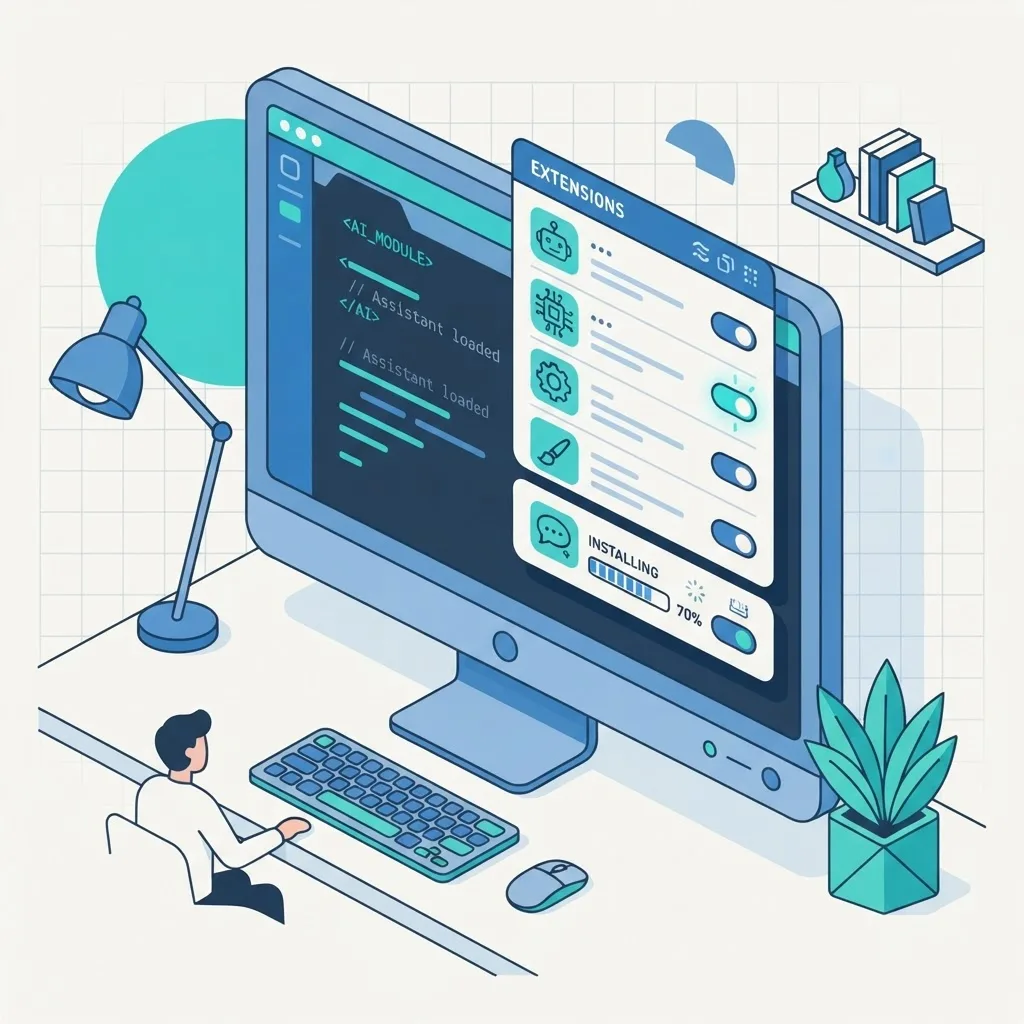
The Best AI Coding Assistants for Beginners in 2026
1. GitHub Copilot (Best Overall for Beginners)
Copilot wins for beginners because it lives inside VS Code — the editor almost every tutorial, bootcamp, and YouTube course already uses. You learn one environment instead of two. Its inline completions are conservative enough that you still type most of the logic yourself, and Ctrl+I inline chat lets you ask "what does this line do?" without leaving the file.
Practical beginner setup: enable Copilot, then immediately disable multi-line suggestions for your first month. You will get single-line hints that speed up syntax recall without writing whole functions for you. Verified students and teachers get Copilot Pro free through the GitHub Student Developer Pack, which removes the cost objection entirely.
Weakness: its agent mode is capable enough to build features you cannot maintain. Treat that mode as a locked room until you can read a 200-line diff and spot a bug in it.
2. Cursor (Best Once You Can Review Code)
Cursor is a VS Code fork built around AI-first workflows. Its Cmd+K edit, codebase-wide chat, and multi-file agent are noticeably stronger than the baseline experience. The catch is that Cursor's defaults encourage generating large changes fast, which is the opposite of what a month-one learner needs.
Use Cursor when you can answer yes to all three: you can read an unfamiliar file top to bottom, you understand git diffs, and you can write a test that proves a change worked. Before that, it accelerates you past the skills you are trying to build.
3. Claude Code / Terminal Agents (Best for Understanding Whole Projects)
Terminal-based agents work at the repository level and are excellent at explaining architecture: "walk me through how a request flows through this app." That is a genuinely hard question for beginners to answer alone. Their weakness is that they operate outside the editor, so there is no visual diff safety net unless you commit frequently. Only use one after you are comfortable with git status, git diff, and git restore.
4. Free-Tier LLM Chat (Best Zero-Cost Starting Point)
A plain chat interface — ChatGPT, Claude, or Gemini in the browser — is still the best free entry point, and for a specific reason: copy-pasting forces you to read the code. There is no accept-with-Tab shortcut to skip comprehension. Many self-taught developers we work with at ZoneTechify learn faster in month one with browser chat than with an integrated assistant, then switch to Copilot once fundamentals are solid.
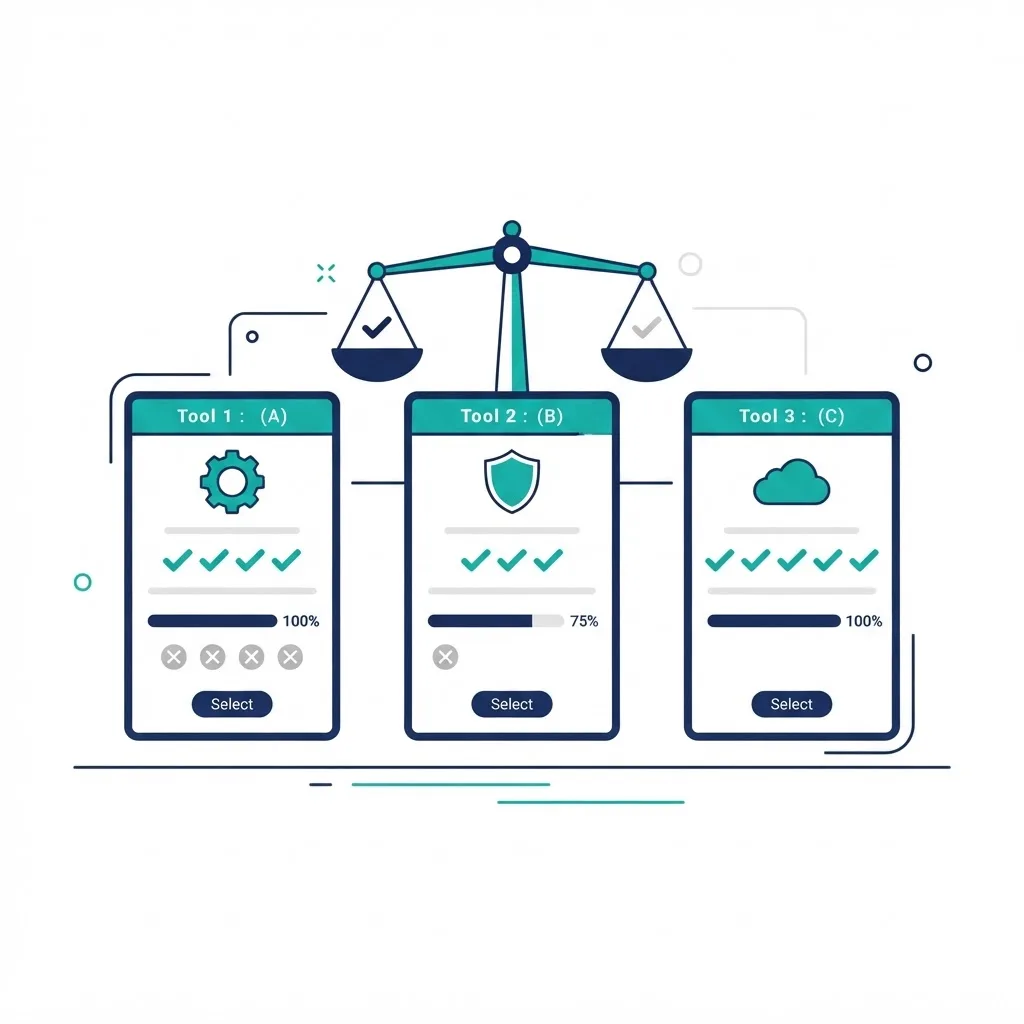
Comparison Table: Beginner Fit at a Glance
| Assistant | Typical Cost | Free Tier | Beginner Learning Fit | Editor Required | Best For |
|---|---|---|---|---|---|
| GitHub Copilot | ~$10/mo | Yes (limited) | Excellent | VS Code / JetBrains | First 12 months of coding |
| Cursor | ~$20/mo | Yes (limited) | Moderate | Cursor only | Learners who can review diffs |
| Claude Code | Usage or subscription | No | Moderate | Terminal | Understanding large projects |
| Windsurf | ~$15/mo | Yes | Moderate | Windsurf | Guided agent workflows |
| Browser LLM Chat | Free | Yes | Very good | None | Absolute beginners, week one |
How to Choose in Five Minutes
- Under three months of coding? Use browser chat plus Copilot's free tier. Nothing else.
- Following a structured course? Match your instructor's editor — usually VS Code — so shortcuts and screenshots line up.
- Building a real project with a deadline? Cursor or Copilot Pro, with mandatory commits before every AI-generated change.
- Learning a specific stack the assistant may not know well? Verify against official docs; assistants are weakest on libraries released in the last few months.
- On a strict budget? Claim the GitHub Student pack if eligible; otherwise free tiers cover hobby-scale work.
The Rules That Protect Your Skills
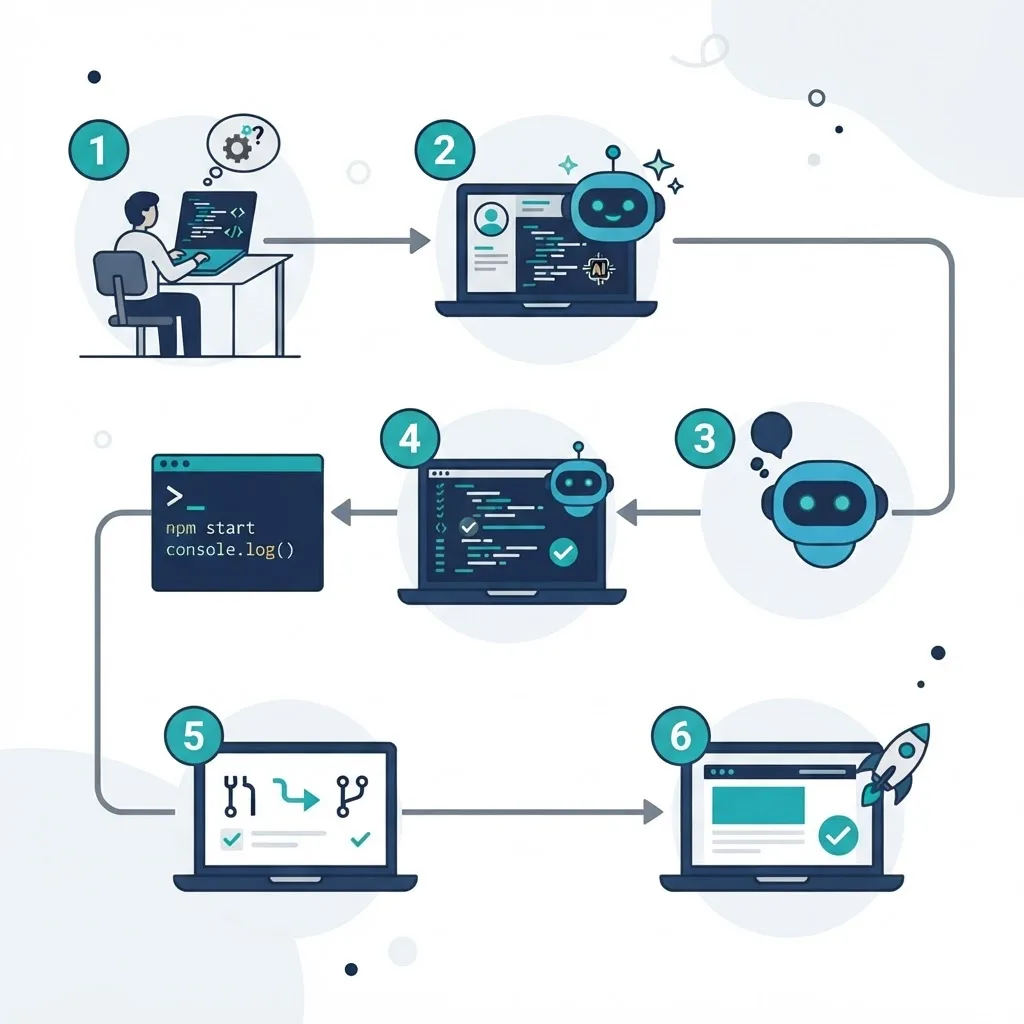
These five habits separate beginners who grow from beginners who plateau.
Rule 1: Never accept code you cannot explain out loud. If you cannot narrate what a suggestion does line by line, reject it and ask the assistant to explain instead. This single rule prevents most AI-driven skill decay.
Rule 2: Commit before every AI edit. A clean git checkpoint turns a bad suggestion into a ten-second git restore instead of an evening of confusion.
Rule 3: Ask for the reasoning, not just the fix. Prompt with "explain why this error happens before showing code." You get a mental model instead of a patch.
Rule 4: Write the test or the manual check yourself. Assistants confidently produce code that runs but does the wrong thing. Your verification step is the only thing standing between that and a shipped bug.
Rule 5: Turn the assistant off once a week. One session per week with completions disabled reveals exactly which syntax you have actually internalised.
Using AI Assistants for Debugging (The Highest-Value Use Case)
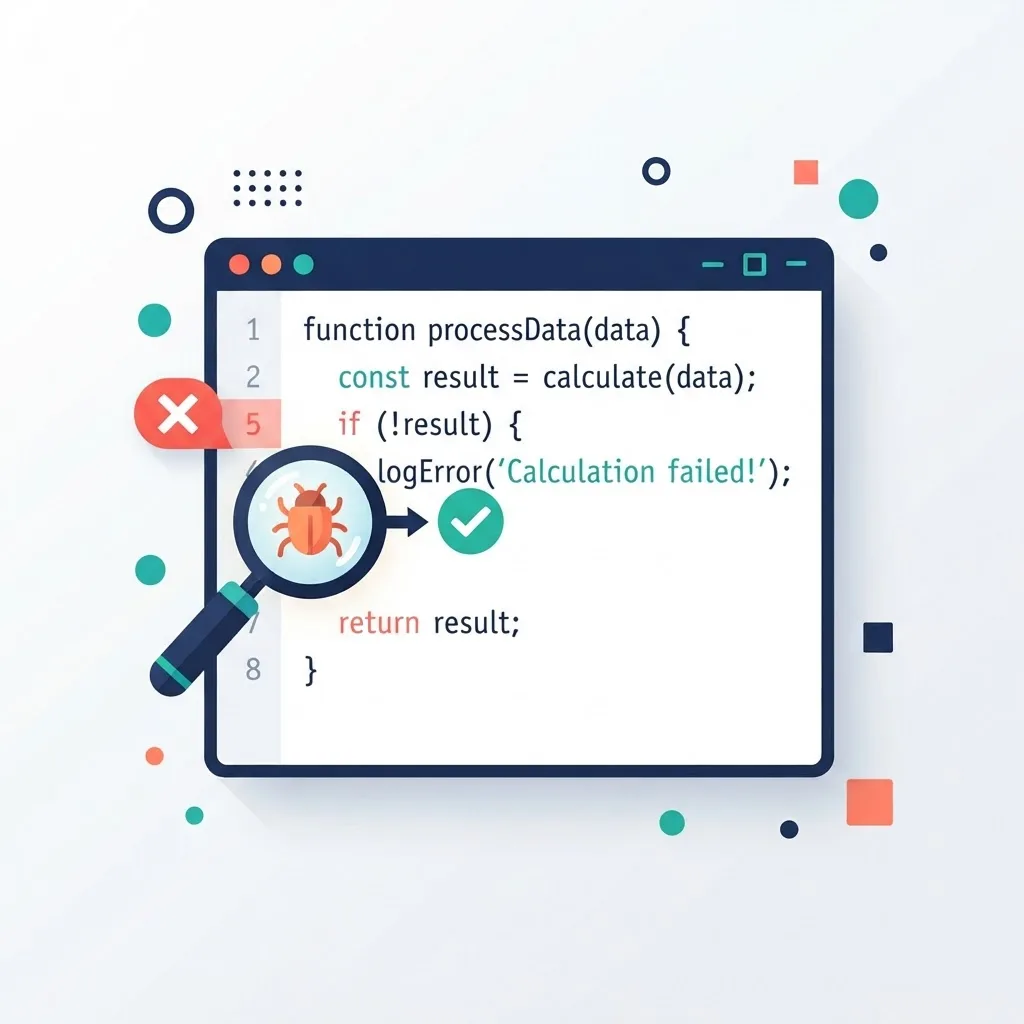
Debugging is where beginners lose the most hours and where AI assistants deliver the clearest return. The workflow that works:
- Paste the full error message and stack trace, not a paraphrase.
- Include the relevant file and the exact command you ran.
- State what you expected to happen versus what happened.
- Ask for the likely cause first, then a fix.
- Apply the fix manually by typing it, not by accepting a patch.
Step five feels slow and is the entire point. Typing the fix builds the recall that reading it does not.
Security and Code Quality Cautions
AI assistants reproduce patterns from training data, including insecure ones. Beginners should manually verify three things in any generated code: input validation, secret handling (never hardcoded keys), and database queries (parameterised, never string-concatenated). Academic studies of AI-generated code have repeatedly found meaningful rates of security weaknesses in unreviewed output, and a beginner is the least likely person to catch them. When a project moves from learning exercise to something real users touch, get a professional review — teams like WebPeak and specialists in AI implementation services exist precisely because production standards differ from tutorial standards.

Key Takeaways
- GitHub Copilot in VS Code is the best default AI coding assistant for beginners in 2026 — lowest friction, widely documented, free for verified students.
- Cursor is better but later. Adopt it once you can read a full file and review a diff.
- GitHub's research measured a 55% task speed increase with Copilot among experienced developers; that gain depends on review skill beginners must still build.
- Roughly 76% of developers use or plan to use AI tools, while trust in their accuracy remains a minority view — verification is the missing skill, not access.
- Inline completion and chat build understanding; agent mode should be delayed until you can evaluate multi-file changes.
- The strongest beginner habits are: commit before every AI edit, never accept unexplainable code, and code assistant-free once a week.
Frequently Asked Questions (FAQ)
What is the best AI coding assistant for a complete beginner?
GitHub Copilot in VS Code is the best starting point for most complete beginners. It is inexpensive, free for verified students, and works inside the editor almost every tutorial uses. Pair it with a browser chat tool for explanations, and keep agent mode switched off for your first few months.
Is Cursor or GitHub Copilot better for beginners in 2026?
Copilot is better for true beginners; Cursor is better once you can review code. Cursor's multi-file agent generates large changes quickly, which outpaces a new developer's ability to verify them. Start on Copilot, then move to Cursor when reading diffs and writing tests feels routine.
Will using AI coding assistants stop me from learning to code?
Only if you accept code you cannot explain. Used as an explainer and debugging partner, AI assistants accelerate learning significantly. Used as an autocomplete you approve blindly, they hide the exact struggle that builds skill. The safeguard is simple: narrate every suggestion before accepting it.
Are there any genuinely free AI coding assistants worth using?
Yes. GitHub Copilot's free tier covers a monthly allowance of completions and chat requests, which is enough for hobby projects. Browser-based chat from ChatGPT, Claude, or Gemini is also free and arguably better for learning because copy-pasting forces you to read the code.
How do I know if AI-generated code is safe to use?
Check three things manually: that user input is validated, that no API keys or passwords are hardcoded, and that database queries use parameters rather than string concatenation. If the project handles real user data or payments, get a human security review before launch — assistants do not guarantee secure output.
Which programming language works best with AI coding assistants?
Python and JavaScript get the strongest results because they dominate public training data. Assistants are noticeably weaker on niche languages, brand-new framework versions, and internal proprietary APIs. If you are learning and want maximum AI support, starting with Python or JavaScript is the pragmatic choice.
Final Recommendation
If you are learning to code in 2026, install GitHub Copilot in VS Code, disable multi-line suggestions for a month, and use chat mode to ask "why" more often than "write." Graduate to Cursor when you can review a diff without anxiety. The best AI coding assistant for a beginner is not the most powerful one — it is the one that leaves you a better programmer than it found you.