Learn how artificial intelligence supercharges Power BI, what free PDF resources actually teach, and how to build AI-driven dashboards that deliver real business insight.
Artificial Intelligence with Power BI PDF Free Download
Artificial intelligence has quietly become the most valuable feature inside Microsoft Power BI, yet most professionals still use it like a static charting tool. If you searched for an "artificial intelligence with Power BI PDF free download," you are really asking two things: where can I get a trustworthy learning resource, and how do I actually apply AI inside Power BI to make better decisions? This guide answers both, drawing on real implementation experience rather than recycled marketing copy.
We will cover what AI in Power BI genuinely does, which free PDF and learning resources are worth your time, and a practical roadmap to go from beginner to building predictive dashboards. Whether you are an analyst, a small-business owner, or a student, you will leave with a clear plan.
Quick Answer: Artificial intelligence in Power BI combines built-in features like Q&A, Copilot, Key Influencers, and AutoML with external models to surface predictions, anomalies, and plain-language insights. Free PDF guides help you learn these tools, but Microsoft Learn is the most reliable, always-updated source.
What Does Artificial Intelligence Actually Do in Power BI?
Artificial intelligence in Power BI refers to a set of machine-learning-powered features that automatically find patterns, generate insights, and answer questions in natural language. Instead of manually building every calculation, you let the engine detect what matters.
The most useful AI capabilities include:
- Q&A visual: Type a plain-English question like "total sales by region last quarter" and Power BI generates the chart.
- Key Influencers: Identifies which factors most affect a metric, such as why customers churn.
- Anomaly detection: Flags unexpected spikes or drops in time-series data automatically.
- Smart Narratives: Writes dynamic text summaries of your visuals.
- AutoML in dataflows: Trains classification and regression models without writing code.
- Copilot: Uses generative AI to build reports, create measures, and summarize data from prompts.

The key shift is from describing what happened to predicting what will happen next. That is where teams gain a genuine competitive edge, and it is the mindset the best learning resources reinforce.
Are Free PDF Downloads the Best Way to Learn?
Free PDFs can be a solid starting point, but they carry a real risk: Power BI updates monthly, and a PDF published two years ago may reference features that have moved, been renamed, or been replaced entirely. Copilot, for example, only became broadly available recently and appears in almost no older PDF guides.
Here is an honest comparison of the most common free learning formats.
| Resource Type | Cost | Stays Current | Hands-On | Best For |
|---|---|---|---|---|
| Microsoft Learn | Free | Yes | Yes | Reliable, up-to-date learning |
| Free PDF eBooks | Free | Often No | No | Quick offline reading |
| YouTube tutorials | Free | Sometimes | Yes | Visual step-by-step learners |
| Community blogs | Free | Varies | Sometimes | Specific problem solving |
| Paid certifications | Paid | Yes | Yes | Career credentials (PL-300) |
Where to Find Legitimate Free Resources
Instead of chasing random file downloads that may contain outdated or unsafe content, use these trustworthy free sources:
- Microsoft Learn — the official, always-current Power BI learning path, including AI features.
- Microsoft Power BI documentation — downloadable and printable as PDF directly from the docs.
- The official Power BI blog — announces every new AI capability.
- Reputable agency guides — practical, experience-based walkthroughs like those published by ZoneTechify and WebPeak.
A smart habit: when you find a helpful PDF, cross-check its publish date against the current Power BI feature list before you rely on it.
How AI Transforms Data Visualization
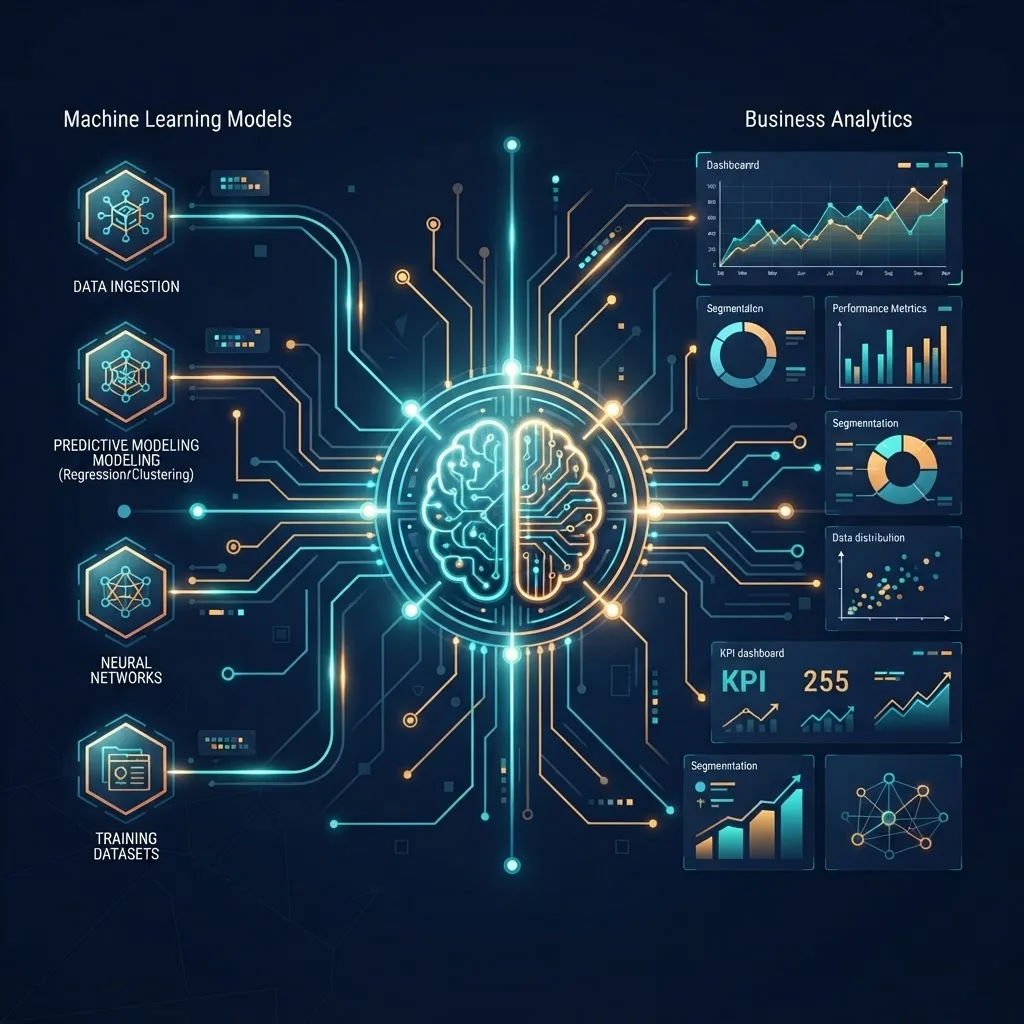
Data visualization is no longer just about picking the right chart. Artificial intelligence changes the workflow at three levels: preparation, analysis, and presentation.
At the preparation stage, AI-assisted data cleaning in Power Query suggests transformations and detects column types automatically. At the analysis stage, Key Influencers and decomposition trees break down complex metrics without manual slicing. At the presentation stage, Smart Narratives and Copilot generate readable summaries so stakeholders understand a dashboard in seconds.
According to Microsoft, organizations using data-driven decision-making are significantly more likely to outperform peers on profitability, and self-service BI tools like Power BI are a primary driver of that shift. The bottleneck is rarely the data anymore — it is turning that data into a clear story, which is exactly what these AI features accelerate.

Understanding Power BI Copilot and Generative AI
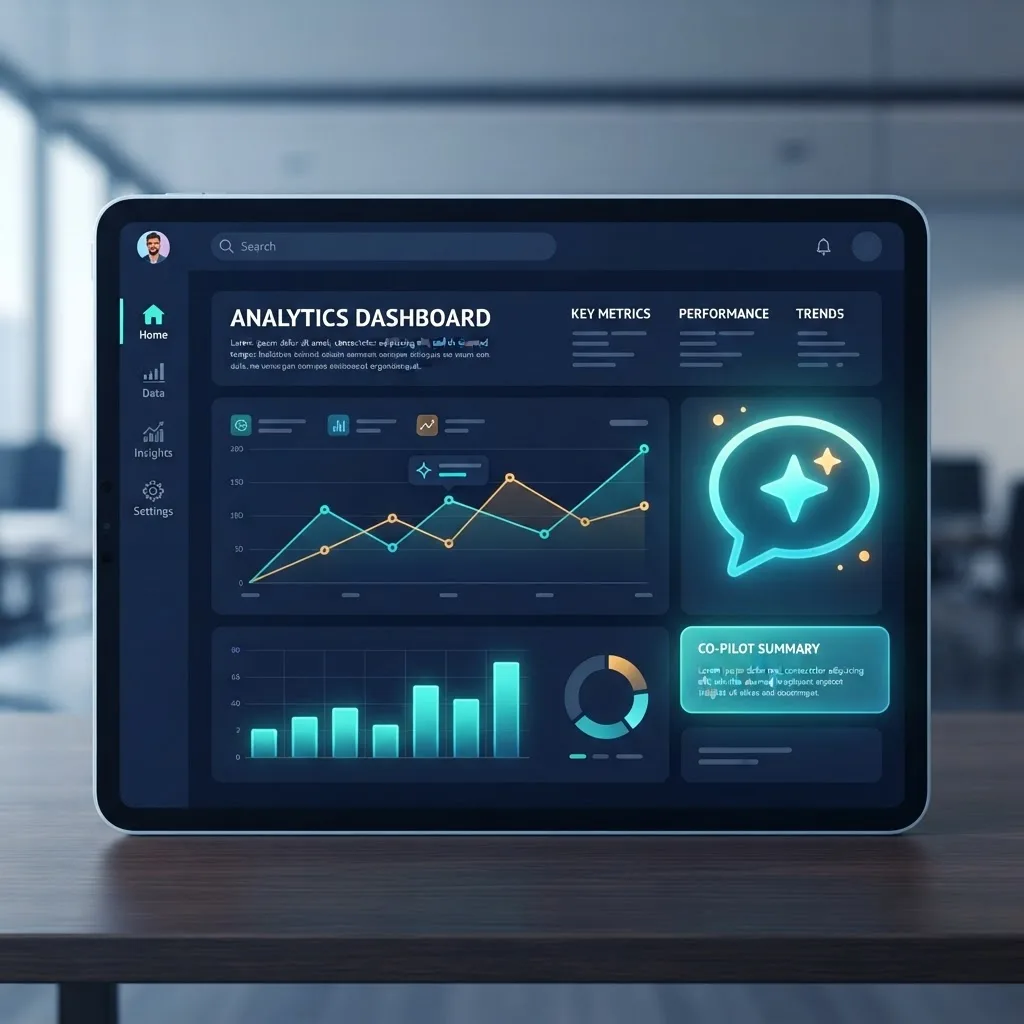
Copilot is the most significant AI addition to Power BI in years. Copilot is a generative AI assistant that builds report pages, writes DAX measures, and explains data using natural-language prompts. It runs on large language models and understands the context of your dataset.
With Copilot you can:
- Ask it to "create a report page analyzing revenue by product category" and get a draft instantly.
- Generate and debug complex DAX formulas by describing what you want in words.
- Produce narrative summaries that update as the data refreshes.
- Suggest follow-up questions you may not have thought to ask.
A practical caution from real projects: Copilot accelerates work but does not replace judgment. Always validate its DAX and its narratives against known figures, because a confidently written summary can still misread an ambiguous data model. Treat it as a fast junior analyst whose work you review.
A Practical Learning Roadmap
The fastest way to master AI in Power BI is to learn in the order you will actually use the features. Skipping fundamentals is why many learners stall.
Step-by-Step Path
- Master the basics first. Learn data import, Power Query, relationships, and simple DAX before touching AI features.
- Build core visuals. Create bar, line, and matrix visuals so you understand what AI is enhancing.
- Add the Q&A and Smart Narratives visuals. These require almost no setup and build confidence.
- Explore Key Influencers and decomposition trees. Learn to interpret, not just generate, insights.
- Experiment with Copilot. Practice prompting and, critically, verifying its output.
- Try AutoML in dataflows. Train a simple prediction model on sample sales data.
- Publish and share. Learn workspaces, refresh schedules, and row-level security.

If you want structured, professional help implementing these tools for a real business, specialist artificial intelligence services can shorten the path considerably, and teams like WebPeak's AI service focus specifically on turning models into usable dashboards.
Building Predictive Analytics with AI
Predictive analytics is where AI in Power BI delivers measurable ROI. Predictive analytics uses historical data and machine-learning models to forecast future outcomes, such as next quarter's demand or which leads are most likely to convert.
Power BI supports this in two main ways. First, the built-in forecasting feature on line charts applies exponential smoothing to project trends with adjustable confidence intervals. Second, AutoML in Power BI dataflows lets you train binary prediction, classification, and regression models on your own data — then score new rows automatically.

According to Gartner, a large share of analytics investment continues shifting toward predictive and prescriptive capabilities rather than purely historical reporting, because forward-looking insight is what changes business outcomes. A retailer, for instance, can forecast inventory needs weeks ahead, cutting both stockouts and overstock costs.
Start small: pick one metric you already understand well, forecast it, and compare the prediction to what actually happens. That feedback loop builds trust in the model far faster than theory.
Common Mistakes to Avoid
Experience teaches that most AI-in-Power-BI failures come from a few repeatable errors:
- Feeding messy data. AI amplifies whatever it receives; clean, well-modeled data comes first.
- Trusting output blindly. Always validate Copilot and AutoML results against known numbers.
- Ignoring feature updates. Review the Power BI blog monthly so you are not learning deprecated tools.
- Over-visualizing. More AI narratives do not equal more clarity; keep dashboards focused.
Key Takeaways
- AI in Power BI includes Q&A, Key Influencers, anomaly detection, Smart Narratives, AutoML, and Copilot.
- Free PDFs help, but Microsoft Learn and official documentation stay current, unlike static downloads.
- Copilot uses generative AI to build reports and DAX from natural-language prompts, but its output must be verified.
- AutoML and forecasting enable code-light predictive analytics on your own data.
- Clean data first: AI amplifies both good and bad inputs, so modeling fundamentals matter most.
Frequently Asked Questions (FAQ)
Is there a real free PDF for artificial intelligence with Power BI?
Yes, but the most reliable option is downloading Microsoft's official Power BI documentation, which can be exported to PDF and is always current. Random third-party PDFs are often outdated because Power BI's AI features, especially Copilot, change frequently and quickly become inaccurate.
Do I need coding skills to use AI in Power BI?
No. Most AI features, including Q&A, Key Influencers, Smart Narratives, and Copilot, work through a point-and-click interface. AutoML also trains models without code. Learning basic DAX helps you go further, but you can start creating AI-driven insights with no programming background at all.
What is the difference between Power BI Copilot and Q&A?
Q&A answers a single question by generating one visual from your data. Copilot is broader and generative: it can build entire report pages, write and debug DAX measures, and produce narrative summaries from prompts. Copilot understands more context, while Q&A is faster for quick, focused lookups.
Can Power BI predict future sales accurately?
Power BI can forecast future sales using built-in forecasting and AutoML models, and accuracy depends heavily on data quality and history length. With clean, consistent data it produces useful directional forecasts, but always validate predictions against actual results and treat wide confidence intervals as a caution signal.
How long does it take to learn AI features in Power BI?
Most people comfortable with basic Power BI can learn the core AI features, like Q&A, Key Influencers, and Smart Narratives, within a few weeks of consistent practice. Mastering Copilot prompting and AutoML predictive modeling takes longer, typically a few months of hands-on project work.
Final Thoughts
A free PDF is a fine spark, but real skill comes from building. Artificial intelligence in Power BI is powerful precisely because it lowers the barrier between raw data and clear decisions — yet it rewards people who understand the fundamentals underneath. Start with Microsoft Learn, practice on data you already know, verify everything the AI produces, and you will move from downloading guides to producing insights other people download from you.