A practical breakdown of the 10 highest-impact ways AI is changing Excel work in 2026, from formula generation and natural language queries to forecasting, auditing, and governance. Includes a comparison table, adoption roadmap, and FAQs.
AI for Excel: 10 Ways Artificial Intelligence Is Transforming Spreadsheets in 2026
Excel did not get replaced by AI. It got a co-worker. After two years of watching finance teams, operations managers, and analysts adopt AI features inside and around spreadsheets, the pattern is clear: the people getting real value are not the ones asking AI to build entire models. They are the ones handing off the narrow, repetitive, error-prone 20 percent of spreadsheet work that used to eat their afternoons.
This guide covers the ten changes that actually matter in 2026, what each one is genuinely good at, where it still fails, and how to roll it out without creating a compliance problem.

Quick Answer: AI is transforming Excel in 2026 through formula generation, natural language data queries, automated cleaning, forecasting, error auditing, chart creation, document extraction, macro and script writing, live data connections, and AI-assisted governance. It accelerates spreadsheet work but still requires human verification of every output before decisions are made.
Why 2026 Is Different From 2024
The shift is architectural, not cosmetic. Early spreadsheet AI was a sidebar that suggested formulas. Current implementations read the workbook structure, understand named ranges and table relationships, and can execute multi-step operations across sheets.
Two data points frame the scale of the opportunity. Microsoft reports Excel has over 750 million users worldwide, making it the most widely deployed data tool on the planet. And a widely cited University of Hawaii study on spreadsheet auditing found that roughly 88 percent of spreadsheets contain at least one error. AI is being aimed directly at that error surface, which is why the productivity gains show up fastest in cleaning and auditing rather than in modeling.
Key Term Definitions
- Natural language query: Asking a question in plain English about spreadsheet data and receiving an answer, chart, or formula instead of writing syntax yourself.
- Grounded AI: An AI response constrained to the actual cell values in your workbook rather than generated from general training data.
- Hallucinated formula: A syntactically valid formula that references the wrong cells or wrong logic, producing a confident but incorrect number.
1. Formula Generation From Plain English
Describing intent instead of recalling syntax is the single biggest time saver for non-power users. Typing "calculate the 3 month rolling average of column D, ignoring blanks" returns a working AVERAGEIFS or dynamic array formula in seconds.
Where it excels: nested IF logic, XLOOKUP with multiple criteria, dynamic array functions like LET and LAMBDA that most users never learn.
Where it fails: formulas that depend on business rules the AI cannot see. If your revenue recognition excludes a specific customer tier, the AI will not know unless you say so. Always state exclusions explicitly in the prompt.
2. Natural Language Data Queries
Instead of building a pivot table, you ask the question. "Which three regions had declining margin for two consecutive quarters?" returns the answer plus the supporting rows.

This matters most for the manager who owns the data but does not own the pivot table skills. The critical practice is verification: ask the AI to show the filtered rows it used, not just the conclusion. A conclusion without visible source rows is a claim, not an answer.
3. Automated Data Cleaning and Standardization
Cleaning is the highest confidence use case in 2026 because the work is pattern-based and instantly verifiable.

AI now reliably handles:
- Splitting inconsistent full names into first and last columns
- Normalizing dates written in five different formats
- Standardizing country, state, and currency labels
- Deduplicating near matches like "Acme Inc" and "Acme, Inc."
- Trimming invisible characters and non-breaking spaces that break lookups
Run cleaning on a duplicated sheet, never the original. Then use a simple COUNTA and SUM comparison between old and new to confirm no rows or values silently vanished.
4. Forecasting and Trend Analysis
AI forecasting inside spreadsheets has moved from single-line trend extrapolation to seasonality-aware projections with confidence intervals.

The honest limitation is data volume. A forecast built on 14 months of history cannot detect annual seasonality, no matter how the output is presented. Insist on at least two full cycles of history before treating a seasonal forecast as decision-grade, and always read the confidence band rather than the center line.
5. Error Detection and Formula Auditing
This is the most underrated capability. AI can scan a workbook and flag broken reference patterns, inconsistent formulas within a column, hardcoded numbers buried inside calculations, and ranges that stop short of the last data row.

Given that the majority of production spreadsheets contain at least one error, an automated audit pass before a board deck or budget submission is now the cheapest risk reduction available to a finance team.
6. Chart and Dashboard Creation
Describe the story and get the visual. AI now selects appropriate chart types, applies consistent formatting, and generates the written summary that goes underneath.
The practical win is consistency across a team. When ten analysts describe their charts in prompts against a shared style instruction, the deck stops looking like ten different companies made it.
7. Extracting Spreadsheet Data From Documents and Images
PDF bank statements, scanned invoices, and screenshotted tables now convert into structured rows with usable accuracy. This eliminates one of the last genuinely manual data entry tasks in most back offices.
Build a mandatory reconciliation step: total the extracted column and match it against the stated total on the source document. If they do not match to the cent, the extraction failed regardless of how clean it looks.
8. Writing Macros, Office Scripts, and Python in Excel
With Python now available in Excel and Office Scripts replacing much of legacy VBA, AI has become the practical on-ramse to automation for people who do not write code. Describing a task in a sentence and receiving a working script collapses a week of learning into an afternoon.
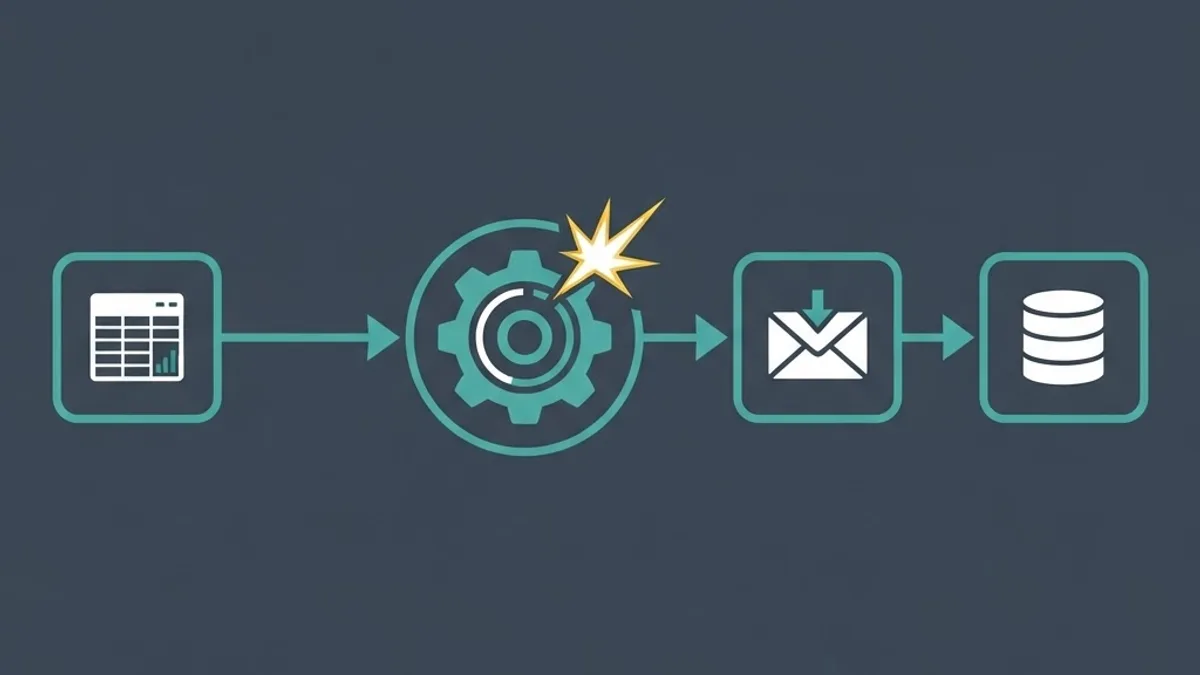
Treat generated scripts as untrusted code. Read what it touches, run it on a copy, and never let an AI-written script write to a shared production file on its first run.
9. Live Data Connections and Enrichment
Spreadsheets increasingly pull live data instead of storing stale exports. AI assists by mapping incoming API or database fields to your existing columns and writing the transformation logic between them.
This is where spreadsheets start to touch real engineering. Once a workbook has three or more live connections and multiple people editing it, it has quietly become an application without any of the safeguards of one. That is usually the signal to move the logic into a proper tool, which is the kind of migration teams at ZoneTechify handle when a critical spreadsheet outgrows its file.
10. AI-Assisted Governance and Documentation
The newest capability is the one auditors care about. AI can generate plain-language documentation of what a model does, map its dependency chain, and produce a change summary between two versions of the same workbook.
Undocumented spreadsheets are an operational risk with a single point of failure: the person who built it. Automated documentation turns that risk into a maintainable asset.
Comparison: Where AI Helps Most in Excel
| Task | AI Reliability | Time Saved | Human Verification Needed |
|---|---|---|---|
| Data cleaning and formatting | High | Very high | Low |
| Formula generation | High | High | Medium |
| Chart and dashboard creation | High | Medium | Low |
| Error and formula auditing | Medium to high | Very high | Medium |
| Document and PDF extraction | Medium | Very high | High |
| Script and macro writing | Medium | High | High |
| Forecasting and projections | Medium | Medium | High |
| Full financial model building | Low | Low | Very high |
A Realistic 30 Day Adoption Plan

- Week 1: Audit. List the five spreadsheet tasks your team repeats weekly and time them honestly.
- Week 2: Start with cleaning. Apply AI only to formatting and standardization, where errors are visible immediately.
- Week 3: Add formulas and charts. Require that every AI-generated formula gets a manual spot check on three known rows.
- Week 4: Set the rules. Write a one-page policy covering which files AI may touch, what data can never be pasted into a prompt, and who approves AI-generated logic before it reaches a decision.
The policy step is the one teams skip and the one that prevents the incident. If your spreadsheets contain customer records, salary data, or unreleased financials, confirm your AI tool runs in a tenant that does not train on your inputs before the first prompt.
What AI Still Cannot Do With Spreadsheets
AI cannot know your business context, cannot be accountable for a number, and cannot tell you that the underlying data collection process is flawed. It optimizes execution, not judgment. A beautifully generated model built on the wrong assumption is more dangerous than a messy manual one, because it looks finished.
The analysts winning in 2026 use AI to buy back time, then spend that time on the interpretation work that was always the actual job.
Key Takeaways
- Excel has over 750 million users, making it the largest surface for AI productivity gains in business software.
- Research on spreadsheet auditing found roughly 88 percent of spreadsheets contain at least one error, which makes AI auditing a high-value first use case.
- Data cleaning is the most reliable AI spreadsheet task; full financial model building is the least reliable.
- Never run AI operations on an original file. Always duplicate first and reconcile totals afterward.
- Forecasts need at least two full seasonal cycles of history to be decision-grade.
- A written AI usage policy should exist before rollout, not after an incident.
Frequently Asked Questions (FAQ)
Can AI replace advanced Excel skills?
No. AI writes syntax faster than you can, but it cannot judge whether the logic matches your business rules. You still need to understand lookups, references, and aggregation well enough to verify output. AI shifts the required skill from recall to review and validation.
Is it safe to use AI on confidential spreadsheet data?
Only with the right tool configuration. Use enterprise AI accounts that contractually exclude your inputs from model training, and never paste customer records or salaries into consumer chat tools. Check your organization data policy first, then restrict AI access to approved file locations.
Which AI Excel task gives the fastest return?
Data cleaning and standardization. It is repetitive, pattern-based, and errors are immediately visible, so you get large time savings with low risk. Most teams recover hours in the first week just by automating date formatting, deduplication, and text splitting tasks.
Do AI-generated Excel formulas contain mistakes?
Yes, regularly. The most common failure is a syntactically correct formula pointing at the wrong range or missing a business exclusion. Always test generated formulas against three rows where you already know the correct answer before applying them across a full dataset.
Should I move my spreadsheet to a real application?
Consider it when the file has multiple live data connections, several simultaneous editors, or supports a decision worth more than the file is protected for. At that point a spreadsheet is functioning as software without version control, access rules, or testing.
Does AI work with older Excel versions?
Most native AI features require current Microsoft 365 subscriptions. Older desktop licenses can still benefit through external AI tools that generate formulas and scripts you paste in manually, though you lose the workbook-aware context that makes native assistants accurate.