A complete, developer-tested guide to downloading and installing MongoDB Compass on macOS, including Apple Silicon builds, connection setup, security, and error fixes.
MongoDB Compass Download Mac
Downloading MongoDB Compass on a Mac takes about four minutes, but the number of developers who end up with the wrong build, a blocked installer, or a client that cannot reach their cluster suggests the process is less obvious than the download button implies. This guide walks through the exact steps, the decisions that actually matter on macOS, and the fixes for the errors that stop most first installs.
Quick Answer: Download MongoDB Compass for Mac from the official MongoDB download center, choosing the macOS ARM64 build for Apple Silicon or macOS x64 for Intel Macs. Open the downloaded .dmg file, drag Compass into your Applications folder, launch it, and paste your connection string to connect.
What MongoDB Compass Actually Is
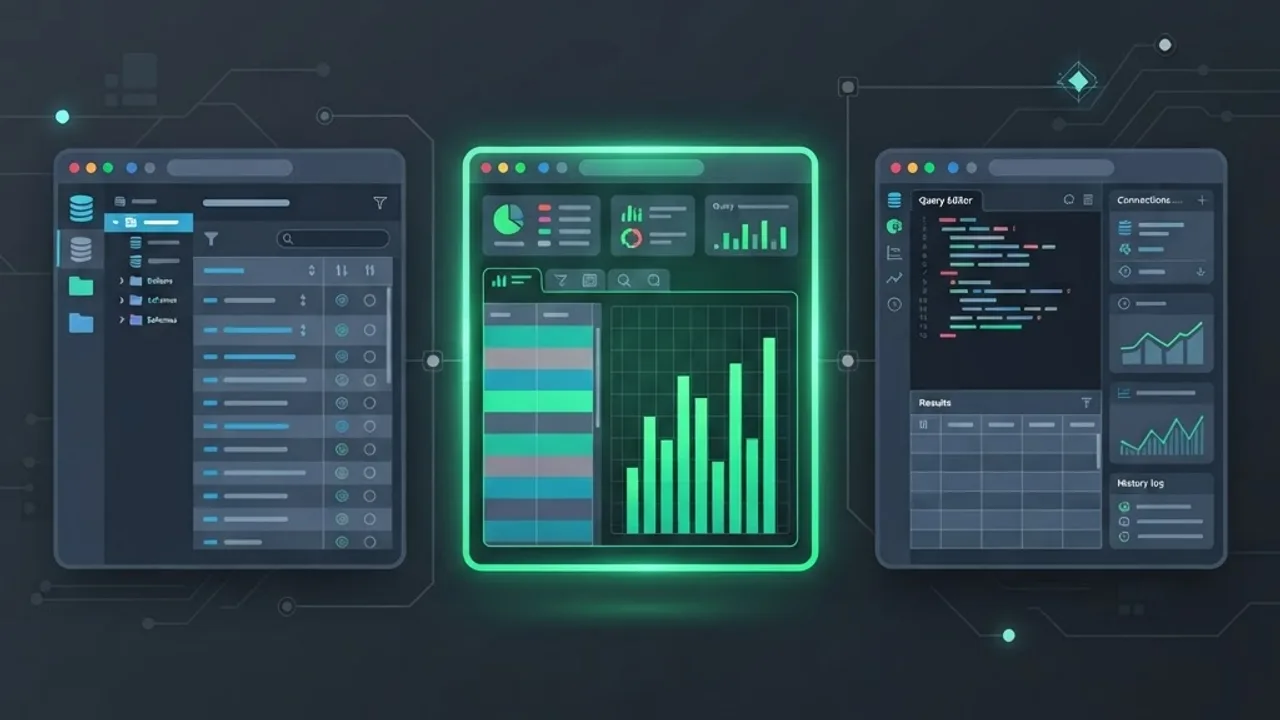
MongoDB Compass is the official graphical user interface for MongoDB, built and maintained by MongoDB Inc. It lets you browse databases and collections, run queries without memorising shell syntax, inspect schemas, view index usage, analyse slow queries with an explain plan visualiser, and edit documents directly.
The important distinction: Compass is a client, not a database. Installing it on your Mac does not install MongoDB itself. If you want a local database running on your machine, you install the MongoDB Community Server separately, usually through Homebrew. Compass simply connects to whatever server you point it at, whether that is localhost, a self-hosted replica set, or a MongoDB Atlas cluster in the cloud.
That separation confuses a large share of new users. A common support pattern is a developer who installs Compass, launches it, sees a connection error, and assumes the download failed. The download worked fine. There was simply no database listening on port 27017.
Check Your Mac Before You Download
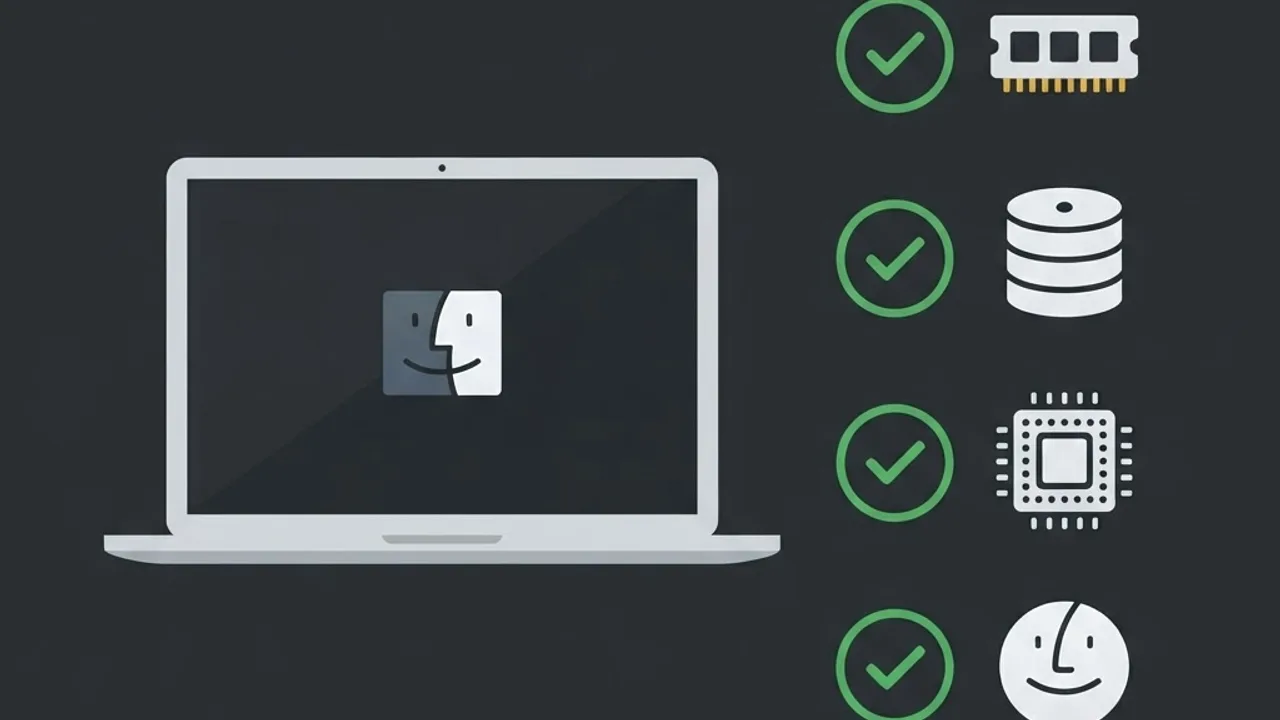
Spend thirty seconds on this step and you avoid the most common installation mistake, which is downloading the wrong architecture.
Find Your Chip Type
Click the Apple menu, then About This Mac. If the Chip line reads Apple M1, M2, M3, or M4, you have Apple Silicon and need the ARM64 build. If it reads an Intel Core processor, you need the x64 build.
Confirm Your macOS Version
Recent MongoDB Compass releases require macOS 11 Big Sur or later. Compass ships as an Electron application, and Electron dropped support for older macOS versions, so a Mac still on Catalina will need an archived Compass release rather than the current one.
Practical Requirements
| Requirement | Minimum | Recommended |
|---|---|---|
| macOS version | macOS 11 Big Sur | macOS 13 or later |
| Architecture | Intel x64 | Apple Silicon ARM64 |
| RAM | 4 GB | 8 GB or more |
| Free disk space | 500 MB | 1 GB |
| Network | Outbound TCP 27017 | Outbound 27017 plus SRV DNS lookups |
MongoDB reported more than 500 million total downloads across its database and tooling ecosystem, and Compass is the default entry point for most of those developers who prefer a visual client over the mongosh shell. Stack Overflow developer survey data has repeatedly placed MongoDB in the top tier of most-used NoSQL databases, which is why understanding its tooling is a practical skill rather than a niche one.
Downloading MongoDB Compass for Mac
Always download from the official MongoDB download centre at mongodb.com. Third-party mirrors and aggregator sites that repackage installers are a genuine supply chain risk for a tool that will hold your database credentials.
On the download page:
- Set Product to MongoDB Compass.
- Set Version to the latest stable release, not a beta.
- Set Platform to macOS ARM 64 for Apple Silicon or macOS 64-bit x64 for Intel.
- Set Package to dmg for the standard installer.
- Click Download and let the file land in your Downloads folder.
Compass also comes in an Isolated Edition, which strips out network requests such as telemetry and automatic update checks. Choose that variant if you work in a regulated environment or behind a strict corporate proxy. There is also Compass Readonly, which removes write, update, and delete capabilities, and is a genuinely underused option for analysts and support staff who need to inspect production data without any risk of mutating it.
Homebrew Alternative
If you already manage tooling with Homebrew, a single command replaces the manual download and keeps Compass updatable alongside your other packages. Installing through the Homebrew cask pulls the correct architecture automatically, which removes the wrong-build problem entirely. This is the approach most senior engineering teams standardise on because it can be scripted into a machine setup file.
Installing the DMG Step by Step
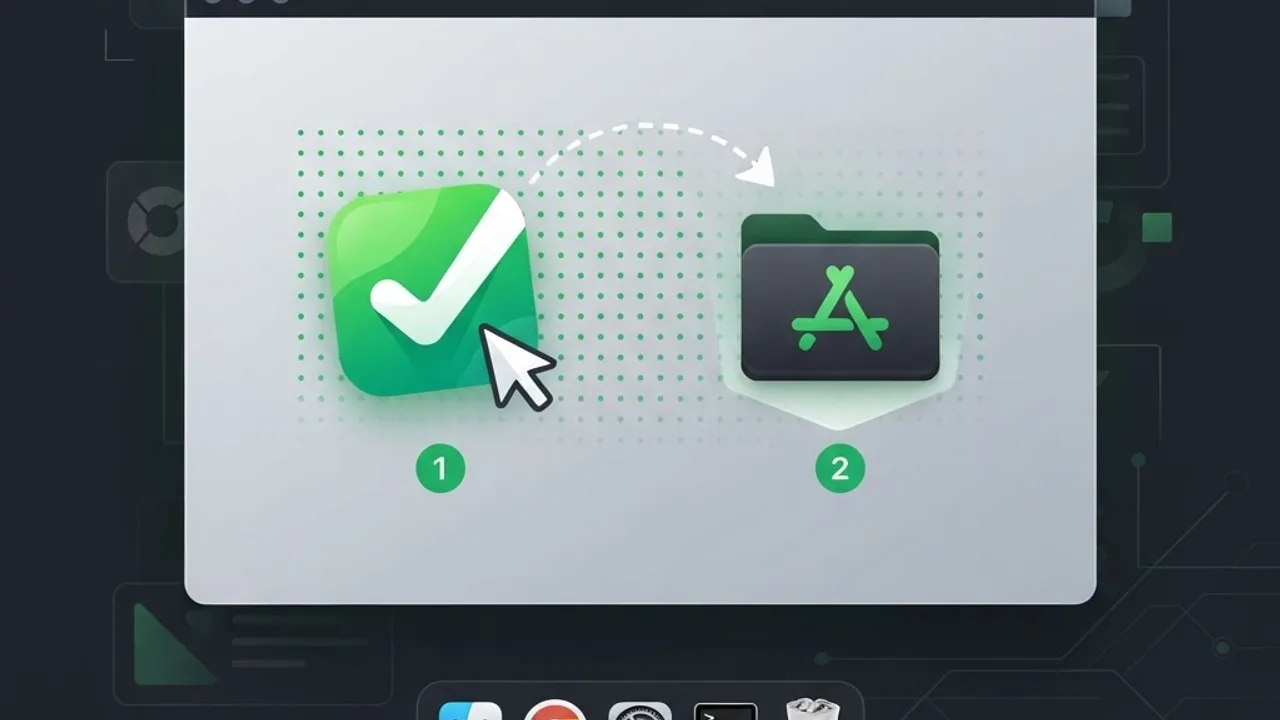
- Double-click the downloaded .dmg file to mount it. A window opens showing the Compass icon and an Applications folder shortcut.
- Drag the Compass icon onto the Applications folder. Do not run Compass from inside the mounted disk image, because updates and saved connections behave unpredictably from a read-only volume.
- Eject the disk image from Finder once the copy completes.
- Open Applications and double-click MongoDB Compass.
- If macOS shows a warning that the app was downloaded from the internet, click Open to confirm. Official Compass builds are signed and notarised by MongoDB, so Gatekeeper should accept them without needing a security override.
- Accept the privacy notice and decide whether to enable crash reports and usage statistics.
On first launch Compass may take fifteen to twenty seconds to open while macOS verifies the notarisation signature. Subsequent launches are much faster.
Apple Silicon Versus Intel Builds

Rosetta 2 will happily run the Intel build of Compass on an M-series Mac, which is exactly why so many people never notice they installed the wrong package. The application works, so nothing looks broken. What you lose is measurable: translated Electron apps consume noticeably more memory and drain battery faster, and large aggregation result sets render more slowly.
If you are unsure which build you installed, open Activity Monitor, find MongoDB Compass in the process list, and check the Kind column. Apple means you have the native ARM64 build. Intel means Rosetta translation is running. The fix is straightforward: delete the app, download the ARM64 package, and reinstall. Your saved connections live in your user library folder and survive the swap.
Connecting Compass to a Database
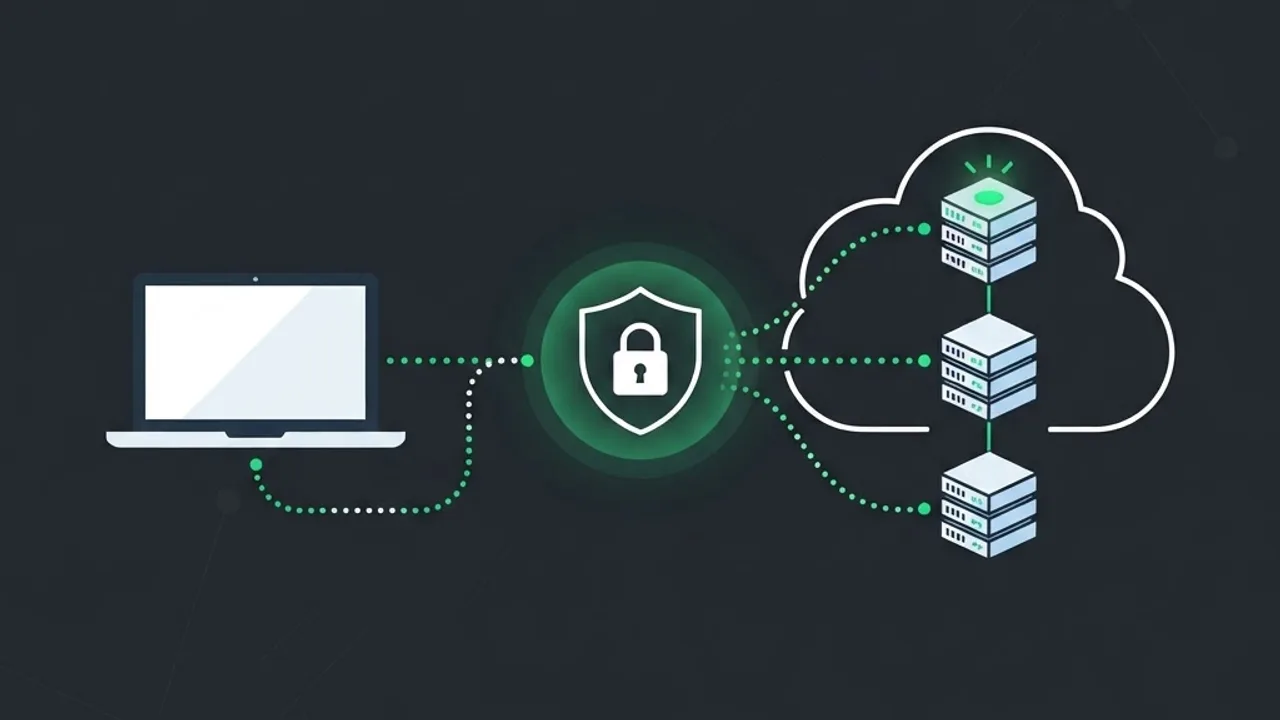
Compass connects using a connection string, also called a connection URI. There are three common scenarios.
Local Database
If you installed MongoDB Community Server through Homebrew and started it as a service, use the default local URI pointing at localhost on port 27017. Compass pre-fills this string, so you often only need to click Connect.
MongoDB Atlas Cluster
In the Atlas dashboard, open your cluster, click Connect, choose Compass, and copy the provided SRV connection string. Replace the password placeholder with your actual database user password. Two Atlas settings block more connections than anything else: your current IP address must be present in the Network Access allowlist, and the database user must have a role that grants read access to the database you want to browse.
Self-Hosted Server Over SSH
Compass includes native SSH tunnelling under the Advanced Connection Options tab. Enter the bastion host, port, username, and identity file, and Compass builds the tunnel for you. This is safer than exposing port 27017 to the public internet, and it means no separate terminal session has to stay open.
A practical habit worth adopting: save each connection with a colour-coded label and a clear name such as staging or production. Compass supports connection colours specifically so that a red-tagged production window is visually distinct from a green local one. This single setting prevents the accidental production edit that every experienced engineer has come close to making at least once.
Security Practices Most Teams Skip
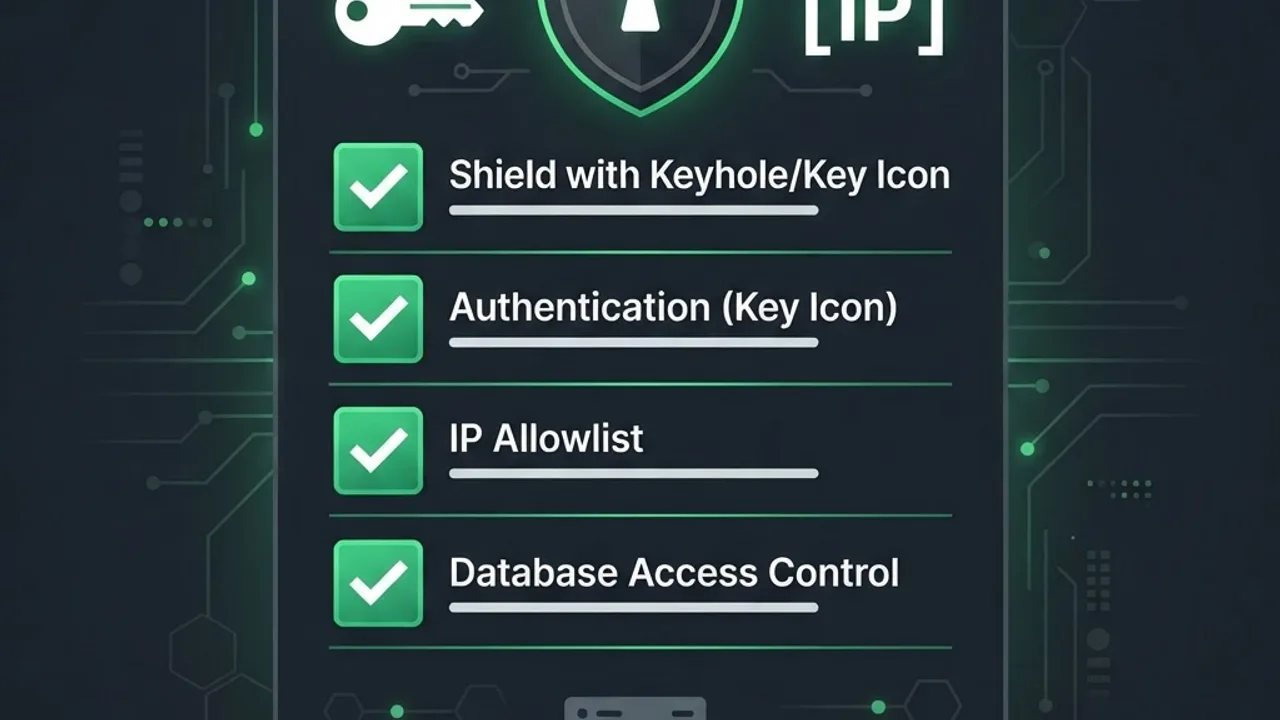
Compass stores saved connection credentials in the macOS Keychain rather than in plain text, which is a meaningful security design choice. Still, a desktop client with production database access deserves deliberate handling.
- Create a dedicated read-only database user for exploratory work instead of connecting with an admin account.
- Enable full disk encryption with FileVault, since Keychain protection depends on your account being locked.
- Avoid pasting connection strings containing live passwords into chat tools, tickets, or AI prompts.
- Use Compass Readonly builds for anyone whose job is analysis rather than schema changes.
- Remove saved production connections from personal laptops when a project ends.
These habits sound obvious written down, yet credential sprawl through developer desktop tools remains one of the quieter causes of data exposure. Teams that formalise database access as part of their engineering standards, the way a disciplined full stack development practice does, avoid the situation where five laptops hold five copies of an admin password.
Fixing the Most Common Mac Errors

Compass Cannot Be Opened Because Apple Cannot Check It
This appears when the download was interrupted or came from an unofficial mirror. Delete the file, download again from mongodb.com, and verify the file size matches the page listing. As a one-time override, right-click the app and choose Open, which presents a confirmable dialog instead of a hard block.
connect ECONNREFUSED 127.0.0.1:27017
Nothing is listening locally. Either MongoDB Server is not installed or the service is stopped. Start it through Homebrew services and retry.
querySrv ENOTFOUND
Your network cannot resolve the SRV DNS record used by Atlas connection strings. Corporate VPNs and some public Wi-Fi networks block this record type. Switch networks, or use the older non-SRV connection string that Atlas still provides.
Authentication Failed
Almost always a password containing special characters that need URL encoding, or a user scoped to the wrong authentication database. Reset the password to an alphanumeric value to isolate the cause.
Compass Launches Then Immediately Quits
A corrupted application preferences file is the usual culprit after a failed update. Removing the Compass folder from your user Application Support directory forces a clean state, at the cost of losing saved connections.
Compass Versus Other Mac MongoDB Clients
| Tool | Cost | Best For | Notable Limitation |
|---|---|---|---|
| MongoDB Compass | Free | Official support, schema analysis, explain plans | Heavier Electron footprint |
| mongosh | Free | Scripting, automation, CI pipelines | No visual interface |
| Studio 3T | Paid tiers | SQL-to-aggregation translation, data migration | Cost for full features |
| NoSQLBooster | Free and paid | Inline query autocomplete | Smaller ecosystem |
| VS Code MongoDB extension | Free | Staying inside your editor | Fewer analysis views |
Our honest assessment after using all five: Compass wins on schema analysis and explain plan visualisation, which are the two features that genuinely change how you write queries. Studio 3T is worth paying for if your work involves frequent migrations between SQL and MongoDB. Most developers end up using Compass and mongosh together rather than choosing one.
Getting Better Performance From Compass

Compass slows down on large collections mainly because of how people use it, not because of the Mac it runs on.
- Always apply a filter before opening a collection with millions of documents rather than scrolling raw results.
- Use the Schema tab, which samples documents instead of scanning everything, to understand structure quickly.
- Open the Explain Plan tab on any query taking longer than a second and look for a collection scan stage, the clearest signal that an index is missing.
- Create indexes from the Indexes tab and re-run the explain plan to confirm the query now uses an index scan.
- Close unused connection tabs, since each one maintains its own connection pool and memory allocation.
Step three is where Compass earns its place in a workflow. Reading an explain plan visually rather than parsing raw JSON output shortens the feedback loop on query optimisation dramatically, and query optimisation is usually where the largest performance gains in a MongoDB-backed application actually live.
Teams building data-heavy products often pair this kind of local tooling discipline with production monitoring. The engineering guides published by ZoneTechify cover that broader database and backend workflow, while web app development specialists at WebPeak approach the same problem from the application architecture side.
Key Takeaways
- MongoDB Compass is the official free MongoDB GUI, available for macOS as both ARM64 and Intel x64 builds.
- Current Compass releases require macOS 11 Big Sur or later, 4 GB of RAM minimum, and roughly 500 MB of disk space.
- Apple Silicon Macs should use the ARM64 build. The Intel build runs through Rosetta 2 with higher memory and battery cost.
- Compass is a client only. A local database requires installing MongoDB Community Server separately.
- Atlas connection failures are usually caused by IP allowlist rules or SRV DNS records blocked on corporate networks.
- Compass stores credentials in the macOS Keychain, and read-only database users plus Compass Readonly builds reduce production risk.
- The Explain Plan tab is the single most valuable Compass feature for finding missing indexes.
Frequently Asked Questions (FAQ)
Is MongoDB Compass free to download on Mac?
Yes. MongoDB Compass is completely free for macOS, including the full-featured edition. MongoDB Inc. distributes it at no cost from its official download centre with no licence key, trial period, or account requirement. Paid MongoDB plans cover cloud hosting and enterprise server features, not the Compass desktop client itself.
Which MongoDB Compass version should I download for an M1 or M2 Mac?
Choose the macOS ARM 64 build for any Apple Silicon Mac, including M1, M2, M3, and M4 chips. The Intel x64 build will still run through Rosetta 2 translation, but it uses more memory, drains battery faster, and handles large query results more slowly than the native version.
Do I need to install MongoDB Server before installing Compass?
Only if you want a database running locally on your Mac. Compass is a client application that connects to an existing database, so it works immediately with a cloud MongoDB Atlas cluster or a remote server. For local development, install MongoDB Community Server separately through Homebrew.
Why does MongoDB Compass say connection refused on localhost?
That error means no MongoDB process is listening on port 27017 of your Mac. Either MongoDB Community Server is not installed, or the service is stopped. Start the service through Homebrew, confirm it is running, then retry the localhost connection in Compass.
How do I completely uninstall MongoDB Compass from a Mac?
Quit Compass, drag the app from your Applications folder to the Trash, then delete the MongoDB Compass folders inside your user Library Application Support and Preferences directories. Finally, open Keychain Access and remove any saved Compass connection credentials to clear stored database passwords.
Can I connect Compass to MongoDB Atlas without exposing my IP address?
Atlas requires your current IP in its Network Access allowlist, but you can avoid opening it broadly by using a private endpoint or a VPN with a fixed egress IP. For self-hosted servers, Compass supports built-in SSH tunnelling through a bastion host instead.