A practical guide to managing your online data with a Modo-style system: audit every account, tighten permissions, consolidate storage, and automate secure backups.
Modo Manage Your Online Data Learn More
Most people do not have a data problem. They have a data sprawl problem. The average person now holds accounts across dozens of services, each quietly storing files, contacts, payment details, location history, and behavioral records that never get reviewed. A Modo-style approach to managing your online data replaces that sprawl with one deliberate system: know where your data lives, control who can use it, keep one authoritative copy, and delete what no longer earns its place.
This guide is written from hands-on cleanup work on real accounts, not theory. It gives you the exact sequence, the decisions that matter, and the tradeoffs you will hit along the way.
Quick Answer: Managing your online data with Modo means centralizing visibility, then controlling access. Inventory every account and storage location, revoke unused app permissions, consolidate duplicate files into one primary source, encrypt and back up what matters, and delete stale data. Review the whole system quarterly so sprawl never rebuilds.
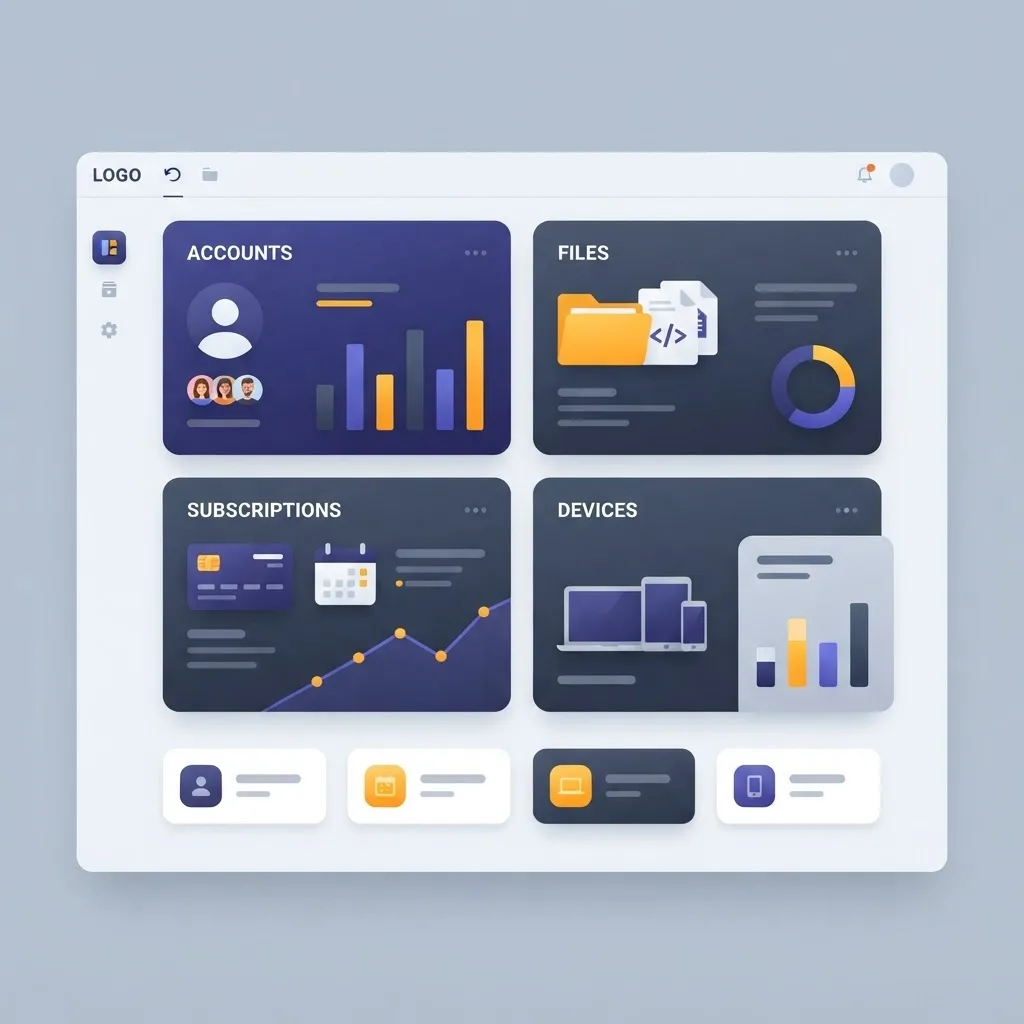
What Does It Actually Mean to Manage Your Online Data?
Online data management is the ongoing practice of controlling what personal information exists about you across services, who can access it, where copies live, and how long it is retained. It is four distinct jobs, and confusing them is why most cleanups fail.
Clear definitions help:
- Data inventory: a written list of every service, device, and storage location holding your information.
- Data access: the permissions you have granted to apps, integrations, and third parties.
- Data residency: where the authoritative copy of a file or record physically lives.
- Data retention: how long each item stays before deletion or archiving.
Most people attack residency first, dragging files between clouds, and skip access entirely. That is backwards. An old fitness app with read access to your contacts is a bigger exposure than an untidy downloads folder.
Why Data Sprawl Costs You More Than Storage Fees
Sprawl creates measurable risk, not just clutter. IBM's Cost of a Data Breach Report has repeatedly placed the global average breach cost above 4.4 million dollars, and consistently identifies stolen or compromised credentials as one of the most common initial attack vectors. Credentials get compromised because they are reused across too many forgotten accounts.
The second data point is regulatory. Under the EU GDPR, individuals hold a right of access and a right to erasure, and organizations generally must respond to such requests within one month. That legal machinery only helps you if you know which companies hold your data. An inventory converts a legal right into a usable tool.
There is a quieter cost too. Every duplicate copy of a document is a second chance for the wrong version to be shared, and a second location a breach can leak from.
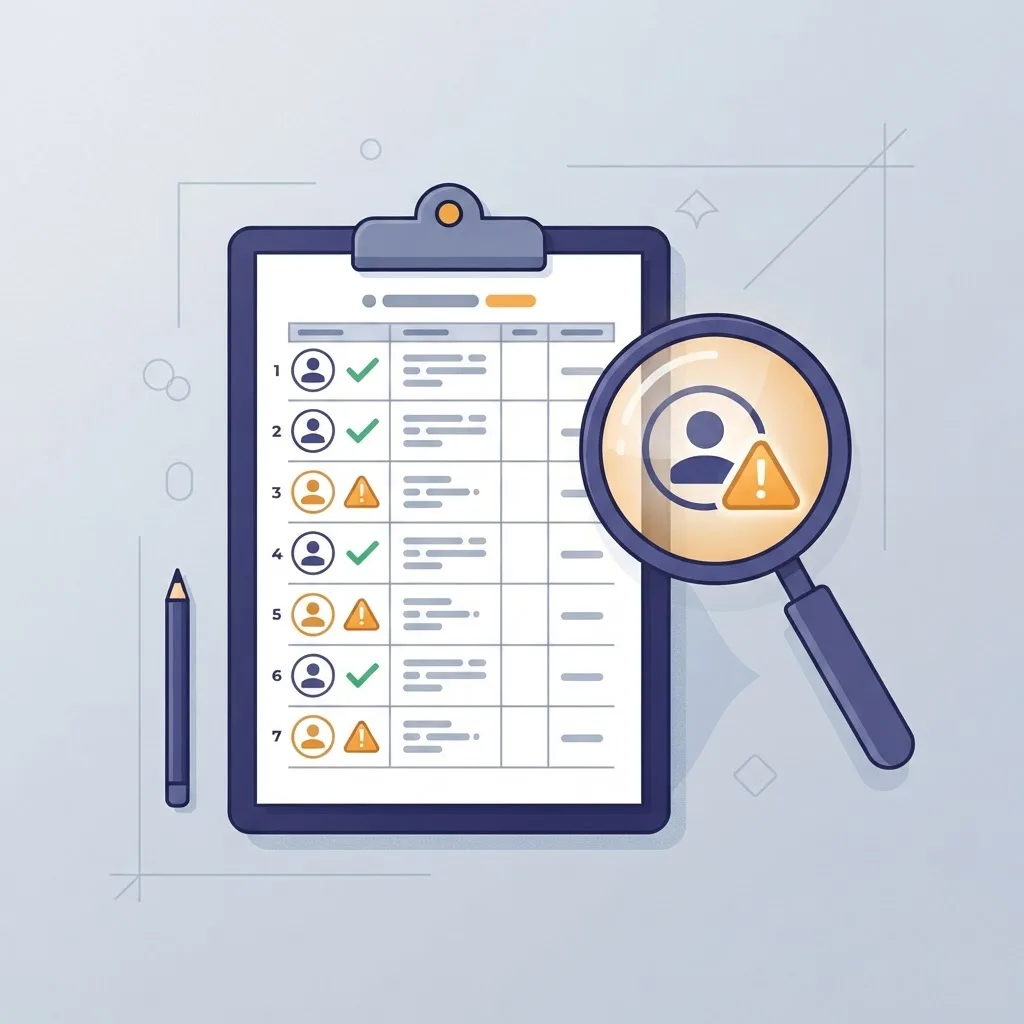
Step 1: Run a Complete Data Audit
Start with discovery, because you cannot secure what you cannot see. Give yourself ninety focused minutes.
- Search your primary email inbox for the phrases welcome, verify your account, and your receipt. This surfaces nearly every service you have ever registered with.
- Open your password manager or browser saved-password list and export the domain list.
- Check each major identity provider for the list of sites where you used social or single sign-on login.
- List every device that syncs data, including old phones, tablets, and work laptops.
- Record each finding in one spreadsheet with columns for service, data type, sensitivity, last used, and action.
Sort by last used. Anything untouched for twelve months is a deletion candidate, not an archive candidate. In practice this single sort typically eliminates a third to a half of the accounts on a first-time audit list.
Step 2: Tighten Permissions Before You Move Anything
Permissions are the highest-leverage fix because they take minutes and remove standing access. Visit the connected apps or third-party access screen of each major account and revoke anything you do not actively use this month.
Pay attention to permission scope, not just the app name. Read access to your entire mail archive is categorically different from read access to a single calendar.
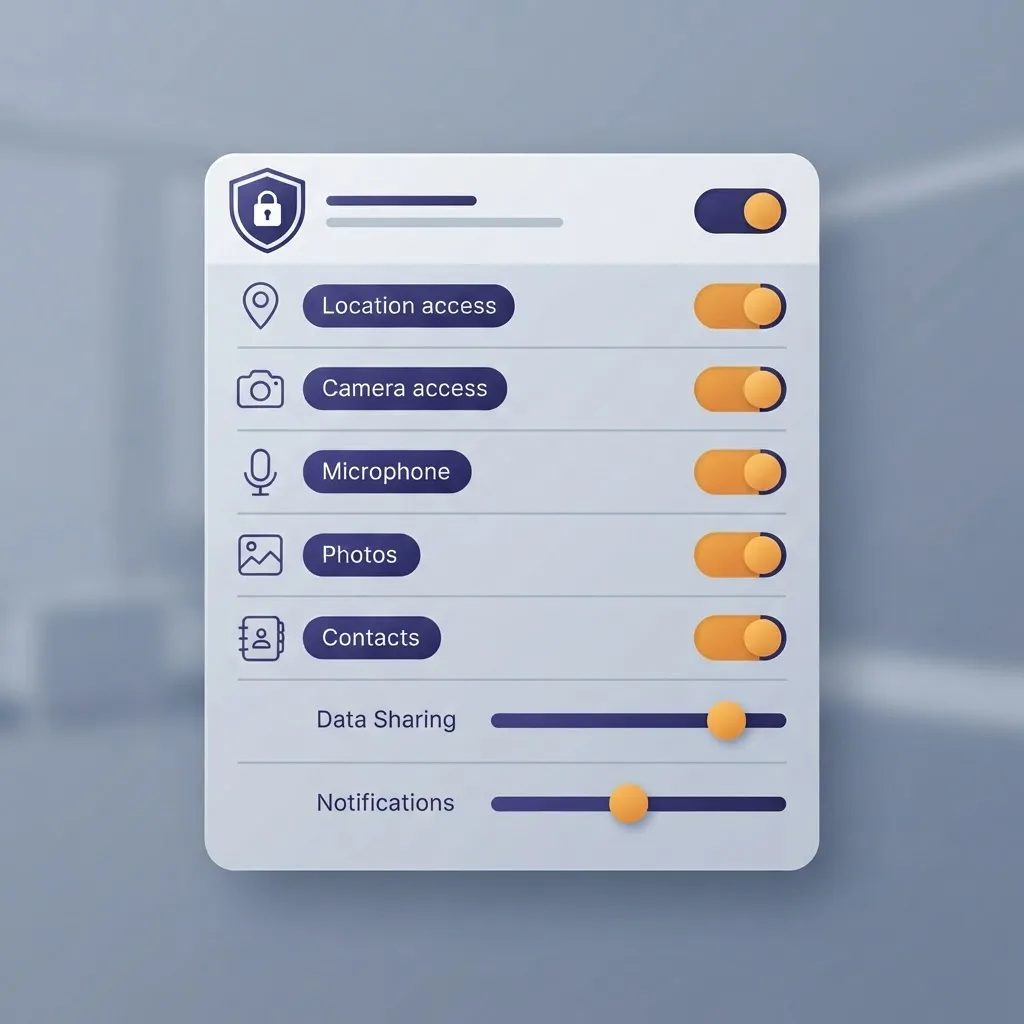
Three rules that hold up in practice:
- Grant the narrowest scope that lets the tool work, then widen only when something breaks.
- Prefer time-limited or per-file sharing over account-wide access.
- Re-check permissions after every app update, since scopes expand silently during major version changes.
If you are handling sensitive business records alongside personal ones, treating access control as an engineering discipline rather than a settings chore pays off quickly. Teams that need help formalizing this can learn more about structured security reviews.
Step 3: Consolidate Into One Source of Truth
Once access is controlled, reduce copies. The goal is one authoritative location per data category, with everything else demoted to a backup or deleted.
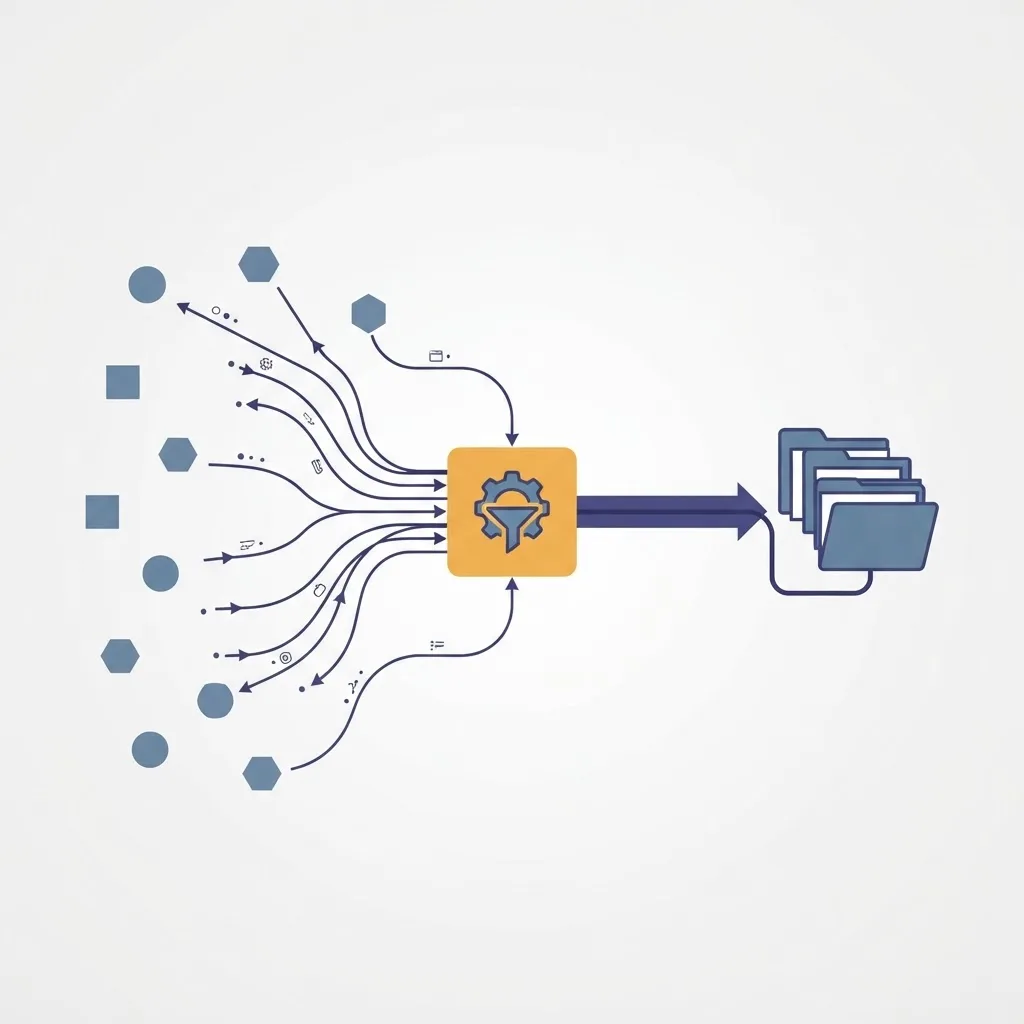
A workable structure most people can maintain:
- Identity and credentials: one password manager, with unique passwords and app-based two-factor authentication.
- Documents and records: one primary cloud drive with a shallow folder structure, no more than three levels deep.
- Media: one photo library with automatic device upload, duplicates removed on a schedule.
- Financial and legal: one encrypted folder, mirrored to an offline copy.
- Communications: one primary inbox, with aliases routing into it instead of separate accounts.
The naming convention matters more than the folder tree. Use the pattern year-month-subject-version for anything you will search later. Search beats browsing at scale, and predictable names make search reliable.
Resist the urge to build an elaborate taxonomy. Systems that require thought to maintain get abandoned within weeks, which is precisely how sprawl returns.
Permission Models Compared
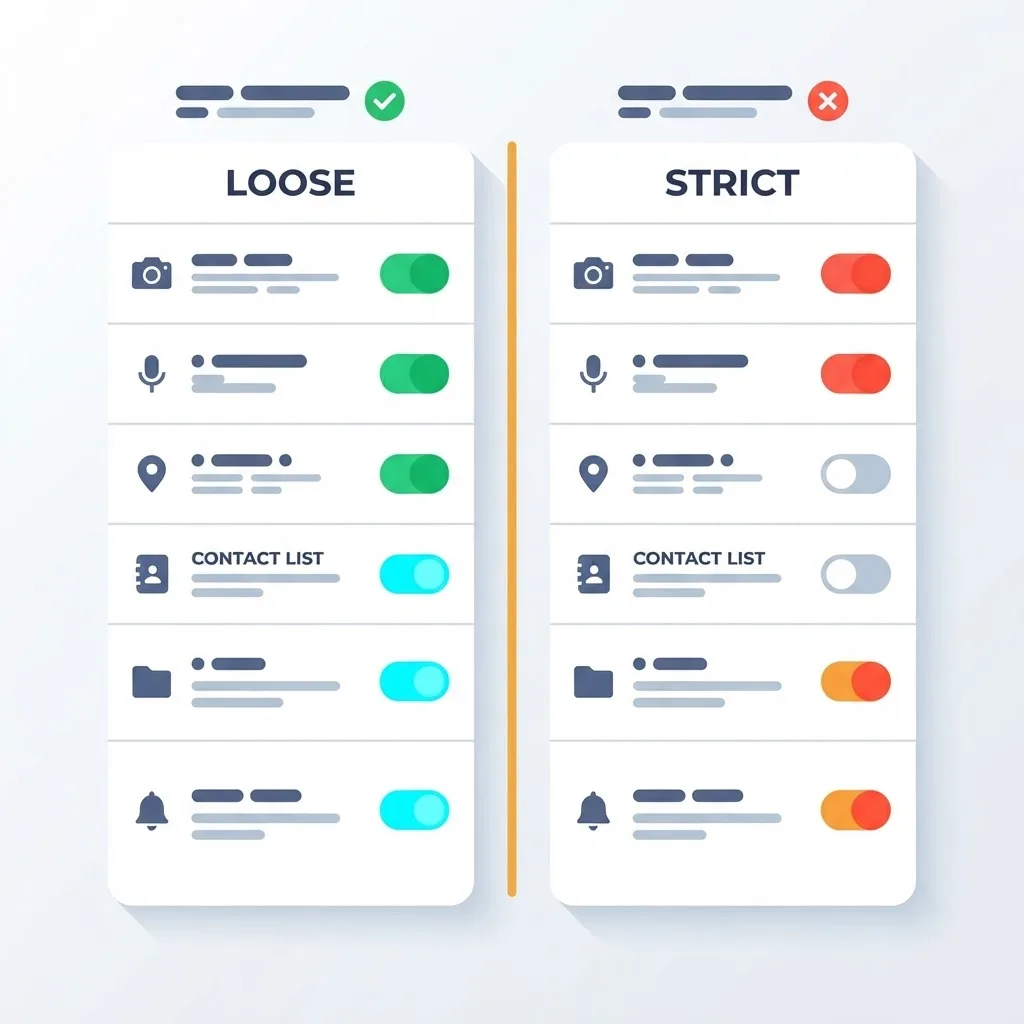
Different access models suit different data types. This comparison reflects the tradeoff between convenience and exposure.
| Access Model | How It Works | Exposure Level | Best For | Main Drawback |
|---|---|---|---|---|
| Account-wide OAuth | App gets ongoing access to a whole service | High | Trusted daily tools | Access persists until manually revoked |
| Scoped OAuth | Access limited to specific data types | Medium | Productivity integrations | Scopes can widen after updates |
| Per-file sharing | Access granted item by item | Low | Client and contractor work | Manual overhead grows fast |
| Expiring share links | Access auto-revokes on a date | Low | One-time document delivery | Link may expire before recipient acts |
| Local-only storage | No third-party access at all | Lowest | Financial and legal records | No sync, needs manual backup |
The practical pattern: scoped OAuth for tools you use weekly, expiring links for anything you send outward, local-only for records you would not want reconstructed by anyone.
Step 4: Back Up What You Cannot Recreate
Backups are the difference between an inconvenience and a loss. Apply the 3-2-1 rule, a long-standing standard in data protection: three copies of important data, on two different media types, with one copy stored offsite.
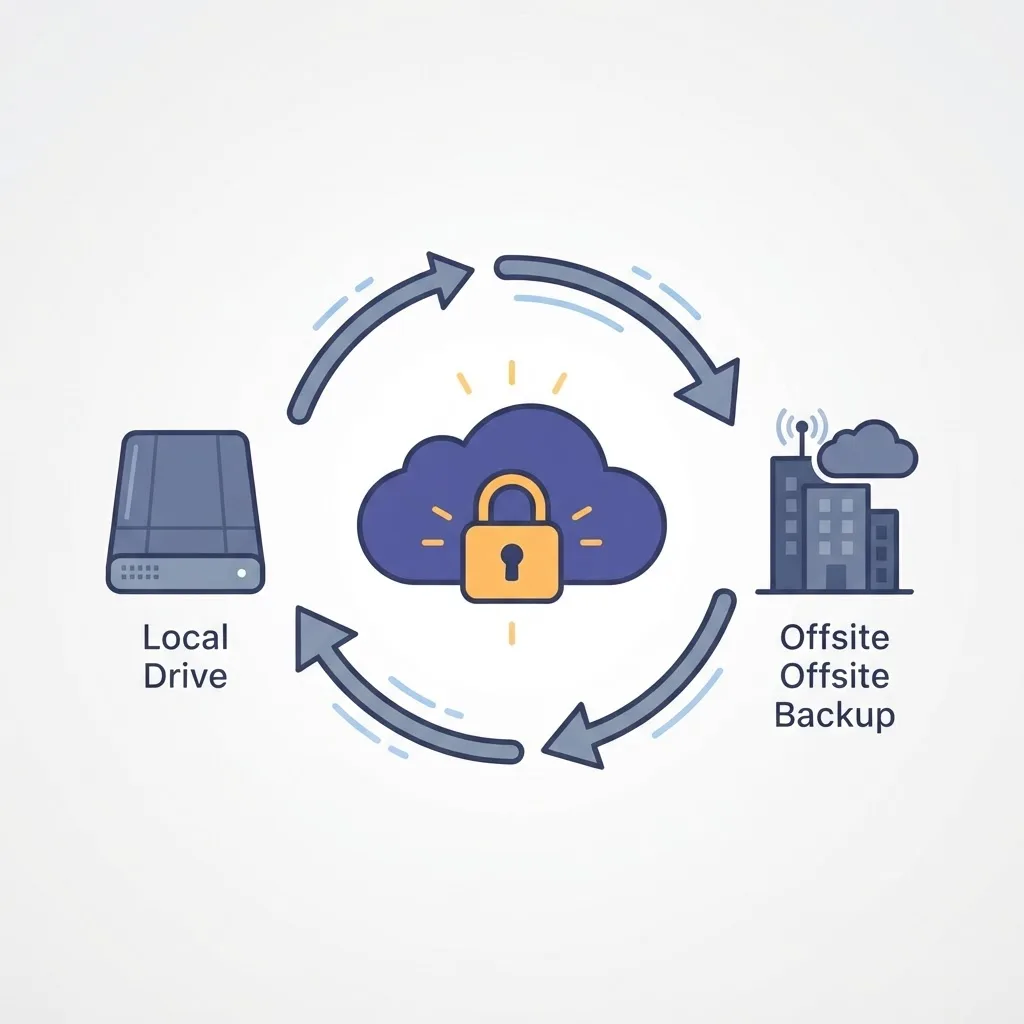
What that looks like in a personal setup:
- Copy one: your working cloud drive, synced continuously.
- Copy two: an encrypted external drive updated weekly by an automated task.
- Copy three: an offsite or second-provider archive updated monthly.
One rule that trips almost everyone: sync is not backup. A synced folder faithfully replicates deletions and ransomware encryption to every device. Confirm your backup tool keeps versioned history and honors a retention window, and test a restore twice a year. An untested backup is a hypothesis.
Step 5: Set Retention Rules and Automate Them
Retention is where a system becomes self-maintaining. Assign every data category an explicit lifespan, then enforce it with automation rather than willpower.
A starting policy that suits most individuals:
- Tax and financial records: keep seven years, then delete.
- Contracts and warranties: keep for the term plus two years.
- Project working files: archive after twelve months, delete after three years.
- Screenshots, downloads, and drafts: auto-delete after thirty days.
- Unused accounts: request erasure and remove credentials immediately.
Automate with the tools you already own. Mail filters that auto-archive newsletters, an operating system rule that empties downloads monthly, and a recurring calendar block for a fifteen-minute quarterly review will hold the line better than any single ambitious cleanup weekend.
When data management crosses into how a business collects and stores customer information, the same discipline applies at a larger scale. Agencies that build with this mindset, including the ZoneTechify Team and the data-driven marketing specialists at WebPeak, treat retention policy as part of the architecture rather than an afterthought.
Step 6: Measure the System, Not the Cleanup
A cleanup is an event; management is a metric. Track four numbers monthly so drift is visible before it becomes sprawl again.
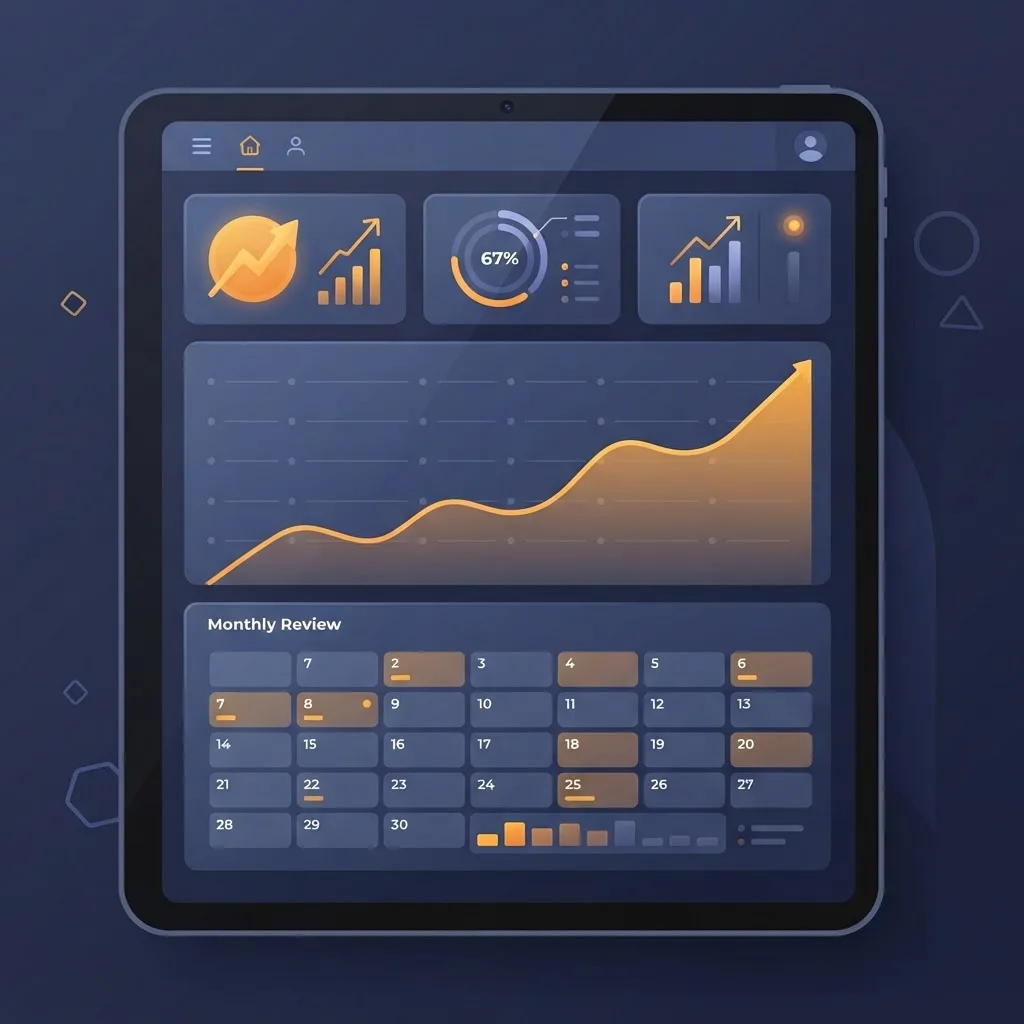
- Active account count: should trend down, then flatten.
- Granted third-party permissions: target fewer than fifteen active integrations.
- Storage locations in use: target one primary plus two backups per category.
- Oldest unreviewed data: should never exceed your retention window.
When a number moves the wrong way, you know exactly which step to revisit. That feedback loop is the real difference between people who stay organized and people who repeat the same cleanup every two years.
Key Takeaways
- Online data management is four jobs: inventory, access, residency, and retention. Fix access before moving files.
- IBM's Cost of a Data Breach research places the global average breach cost above 4.4 million dollars, with compromised credentials a leading initial attack vector.
- Under GDPR, you have a right of access and erasure, and organizations generally must respond within one month.
- Apply 3-2-1 backups: three copies, two media types, one offsite. Sync is not backup.
- Automate retention with mail filters, system rules, and a quarterly fifteen-minute review.
- Track active accounts, granted permissions, storage locations, and oldest unreviewed data as your ongoing metrics.
Frequently Asked Questions (FAQ)
How do I find all the online accounts I have forgotten about?
Search your main inbox for welcome, verify your account, and your receipt. Those phrases appear in nearly every signup and purchase email. Then export saved passwords from your browser or password manager and check which sites you logged into using social or single sign-on providers.
Is it safer to keep my data in one place or spread it out?
One primary location plus controlled backups is safer than scattered copies. Each extra location adds another credential, another permission set, and another potential breach point. Centralizing lets you apply strong authentication and consistent retention once, instead of trying to secure a dozen half-forgotten services.
What is the difference between syncing and backing up my data?
Syncing mirrors changes across devices, including deletions and ransomware encryption. Backup keeps independent, versioned copies you can restore from a specific point in time. If a synced file is corrupted, every device gets the corruption. Only versioned backups with retention history protect you from that.
How often should I review my online data and permissions?
Quarterly works for most people. Book fifteen minutes every three months to revoke unused app permissions, delete accounts untouched for a year, and confirm backups ran. Add an immediate review whenever you change jobs, replace a phone, or receive a breach notification from any service.
Can I make a company delete the data it holds about me?
Often yes. In the EU and UK, GDPR grants a right to erasure, and organizations generally must respond within one month. Many other jurisdictions offer similar deletion rights. Send a written request to the company's privacy contact, keep the correspondence, and follow up if the deadline passes.
What data should never be stored in a regular cloud folder?
Government identity documents, full financial account details, recovery codes, and unencrypted password lists. Keep these in an encrypted container or a password manager with a local offline backup. If a general cloud folder is breached or wrongly shared, these items enable identity theft rather than just leaking content.