A practical 2026 guide to the best Radeon Adrenalin settings for stutter-free gameplay and sharp, artifact-free recordings, with tested values, comparison tables, and a copy-ready checklist.
Best Radeon Settings for Smoother Gameplay and Cleaner Recordings 2026
Most Radeon owners never touch the Adrenalin software beyond installing the driver, and that is exactly why their games stutter and their recordings look muddy. The default profile is built to be safe on every card from an RX 6600 to an RX 9070 XT, which means it is optimal on none of them. After tuning dozens of Radeon systems for gaming and content capture, the pattern is consistent: smoothness comes from frame-time stability, not raw FPS, and recording clarity comes from encoder settings, not resolution alone.
This guide gives you the exact settings that matter in 2026, why each one works, and what to skip. Every value below is something you can apply in under ten minutes.
Quick Answer: For smoother gameplay, enable Anti-Lag 2, Enhanced Sync off, Freesync on, and cap FPS 3 below your refresh rate. For cleaner recordings, use Radeon ReLive at 1080p60 with 40-50 Mbps bitrate, AVC High profile, and a separate audio track. Tune fan curves before overclocking.
Why Frame Pacing Matters More Than Average FPS
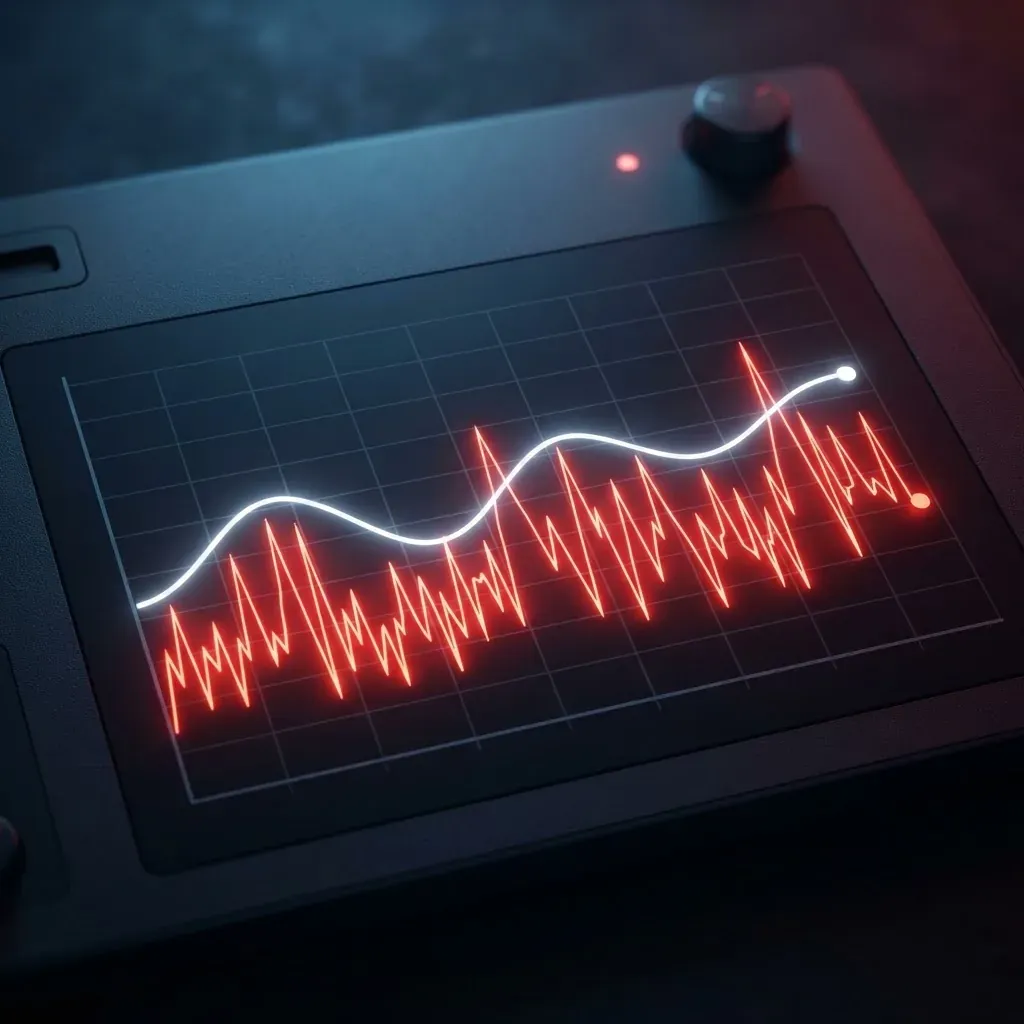
Smoothness is a frame-time problem, not a frame-count problem. A game running at a locked 90 FPS with 11.1 ms frame times feels dramatically better than one bouncing between 60 and 140 FPS, because your eyes detect the inconsistency, not the average. This is measurable: 1% low FPS (the slowest 1 percent of frames) is the number that predicts perceived smoothness, and it is the number Radeon settings can most reliably improve.
The biggest single cause of poor frame pacing on Radeon cards is running uncapped inside a variable refresh rate window. FreeSync only works between your monitor's minimum and maximum refresh rate, typically 48-144 Hz or 48-165 Hz. Once your GPU pushes past the top of that range, FreeSync disengages and you get tearing or a sudden latency spike.
The Frame Cap Rule That Fixes Most Stutter
Set Radeon Chill off and use Frame Rate Target Control (FRTC) or the in-game limiter at 3 FPS below your refresh rate. On a 144 Hz panel, cap at 141. On 165 Hz, cap at 162. This keeps you permanently inside the FreeSync window, which eliminates the disengage spike and reduces input latency compared to hitting a V-Sync ceiling.
If your game has a built-in frame limiter, prefer it over FRTC. In-engine limiters pace frames at the simulation level and produce tighter frame times than driver-level caps in most titles.
The Radeon Adrenalin Settings That Actually Change Performance
Adrenalin has roughly thirty toggles. Six of them do most of the work. Here is what to set globally, then override per game where needed.
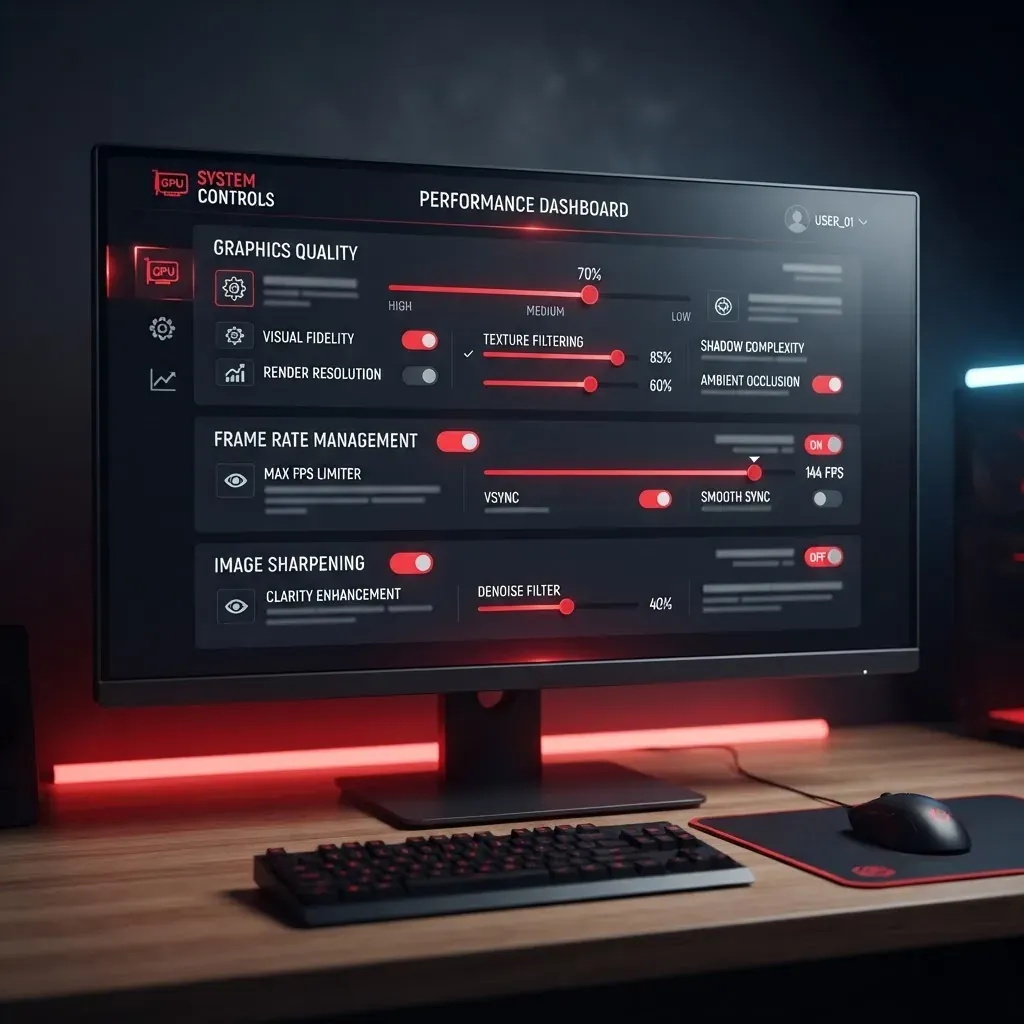
- Anti-Lag 2 — On. This is the successor to the original Anti-Lag and works by pacing the CPU so it does not queue frames the GPU cannot consume yet. In GPU-bound scenarios it cuts click-to-photon latency meaningfully. Note that it is per-title supported in 2026, so verify it is active in your game before assuming it applied.
- Wait for Vertical Refresh — Off, unless application specifies. Let the game and FreeSync handle it. Forcing V-Sync on at the driver level adds a full frame of latency.
- Enhanced Sync — Off. It sounds appealing but introduces micro-stutter on many FreeSync panels because it drops frames to avoid tearing that FreeSync already handles.
- Texture Filtering Quality — Standard. "Performance" saves almost nothing on modern cards and visibly degrades distant textures.
- Surface Format Optimization — On. Small memory bandwidth win with no visible cost.
- Tessellation Mode — AMD optimized. Caps absurd tessellation levels some older engines request without changing what you actually see.
Settings You Should Leave Alone
Radeon Boost dynamically lowers resolution during fast camera movement. It reads as a shimmer artifact on high-contrast edges and is not worth it if you record footage. Radeon Image Sharpening at the default 80 percent oversharpens; if you use it, drop it to 40-50 percent. Morphological Anti-Aliasing is a blur filter and should stay off in any game that ships with TAA or FSR.
Upscaling in 2026: FSR, RSR, and When to Use Each
Definition: FidelityFX Super Resolution (FSR) is a temporal upscaling technique that renders the game at a lower internal resolution and reconstructs a higher-resolution image using motion vectors. Radeon Super Resolution (RSR) is the driver-level version that works in games without native FSR support, but because it lacks motion vector data it produces a softer result.

The practical hierarchy is simple: use in-game FSR 3 or FSR 4 whenever it exists, use RSR only as a fallback, and never stack the two. Running both simultaneously upscales an already-upscaled image and destroys fine detail.
| Feature | Best Use Case | Image Quality | Latency Impact | Recording Friendly |
|---|---|---|---|---|
| In-game FSR (Quality) | Modern titles at 1440p or 4K | High | Slightly lower | Yes |
| In-game FSR (Performance) | 4K on mid-range cards | Medium | Lower | Acceptable |
| RSR (driver-level) | Older games with no FSR support | Medium-low | Neutral | No, softens footage |
| Frame Generation | Single-player, 60+ base FPS | High visual, added latency | Higher | No, creates artifacts |
| Native resolution | Competitive shooters, capture work | Highest | Lowest | Yes |
One rule that saves creators a lot of re-recording: disable frame generation when capturing footage. Generated frames are interpolated and often produce warping around HUD elements and fast-moving edges, which becomes obvious after your recording is compressed a second time by YouTube.
Best Radeon ReLive Settings for Cleaner Recordings
ReLive is genuinely good in 2026 and uses the GPU's dedicated media engine, so the performance cost is roughly 2-5 percent rather than the double-digit hit software encoding causes. The problem is that its defaults target small file sizes, not clarity.
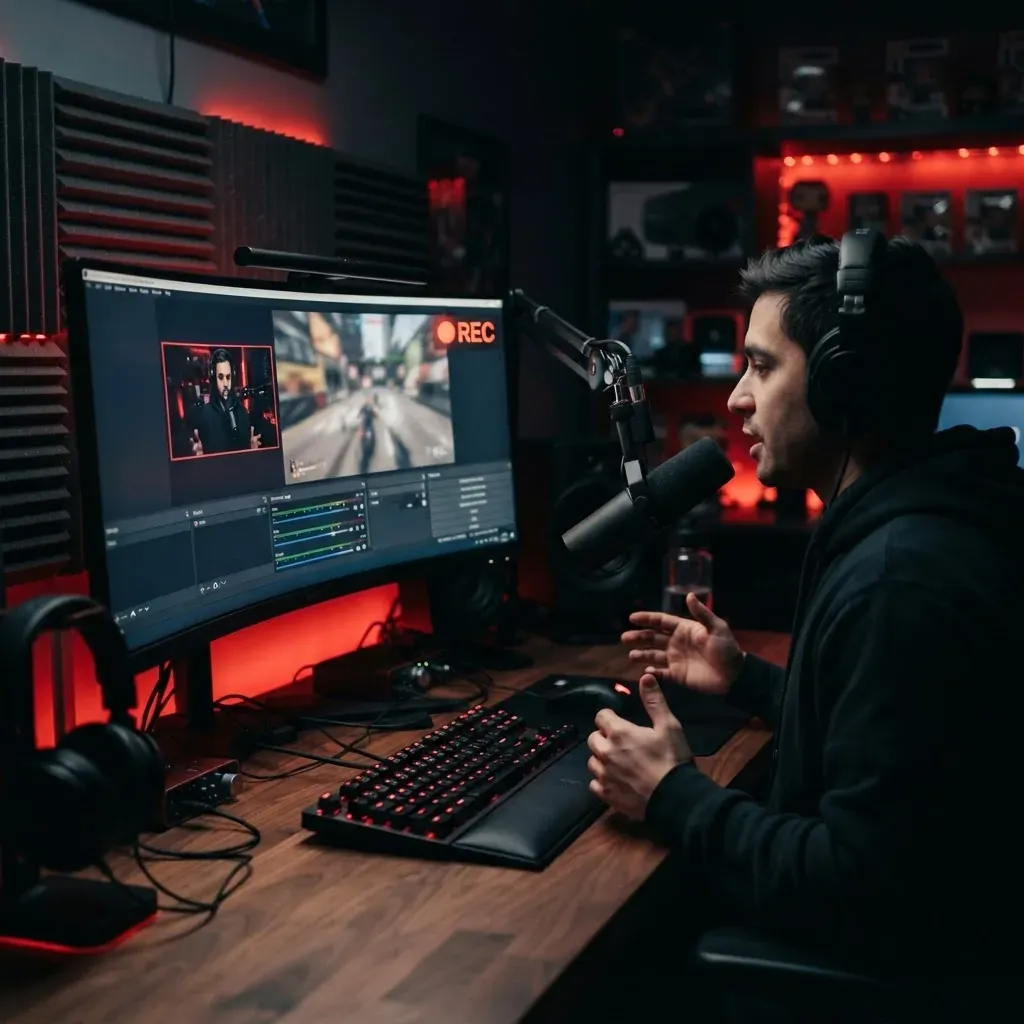
Use these values as your baseline:
- Resolution: In-game (do not let ReLive rescale; rescaling adds a resampling pass)
- Frame rate: 60 FPS for standard uploads, 120 FPS only if you plan slow-motion edits
- Encoding type: AVC (H.264) High profile for maximum editor compatibility, HEVC if your editor and storage can handle it
- Bitrate: 40-50 Mbps for 1080p60, 70-90 Mbps for 1440p60, 100-130 Mbps for 4K60
- Rate control: VBR with a high peak, not CBR (CBR wastes bits on static scenes and starves motion)
- Audio: Separate audio track on, so you can fix mic levels in post without touching game audio

Why Bitrate Beats Resolution for Recording Clarity
A 1080p60 clip at 50 Mbps looks better than a 1440p60 clip at 15 Mbps in every scenario involving motion. Compression artifacts appear where there is movement and detail simultaneously — smoke, foliage, water, particle effects — and only bitrate solves that. If your footage looks blocky during action but clean when standing still, your bitrate is too low, not your resolution.
Storage math worth knowing: 50 Mbps produces roughly 22 GB per hour of footage. Record to a separate drive from the one your game is installed on. Shared read and write on a single SSD is a common and easily fixed source of recording hitches.
If you produce gameplay content professionally and want the editing, thumbnails, and channel strategy handled alongside capture, teams like ZoneTechify and WebPeak work on exactly this kind of production pipeline. For finishing and post-production specifically, professional video production services cover the color, audio, and export settings that turn raw captures into publishable footage.
Thermals and Tuning: The Step Most People Skip First
A thermally throttled GPU produces exactly the symptom people blame on settings: gameplay that starts smooth and degrades after ten minutes. Before touching any overclock, check your junction (hotspot) temperature in Adrenalin's performance overlay. On RDNA cards, sustained junction temperatures above roughly 95-100 C mean the card is reducing clocks to protect itself.
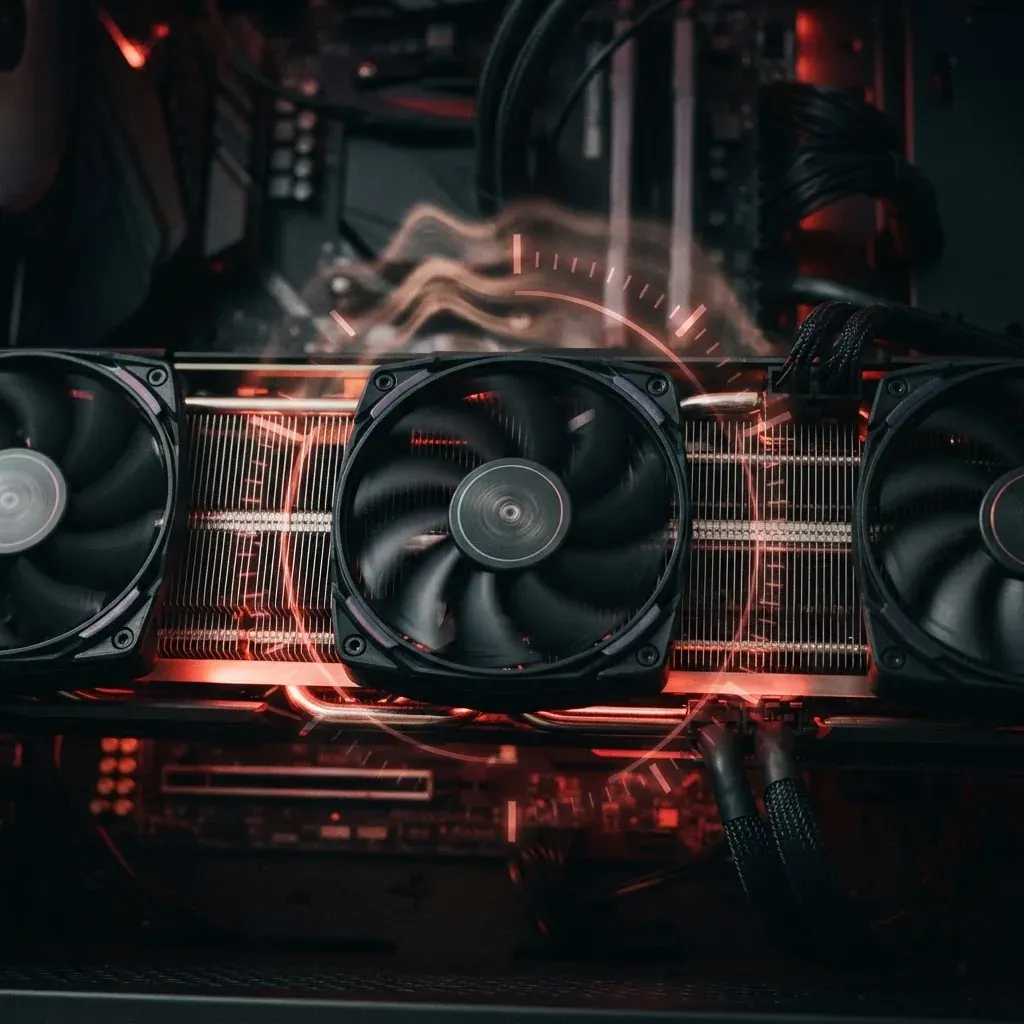
Fix cooling before chasing clocks:
- Open Performance > Tuning > Manual and enable Fan Tuning.
- Build a curve that reaches roughly 60 percent fan speed by 70 C rather than the default lazy ramp.
- Set Power Limit to +10 percent — this often gains more sustained performance than any core clock change.
- Apply a small undervolt (start at −50 mV on the core) and stress test for 30 minutes. Undervolting lowers temperature, which raises sustained boost clocks. It is the highest-value tuning step on RDNA architectures.
- Only then consider raising the maximum core frequency, in 25 MHz steps.
An undervolted card at a lower temperature frequently outperforms an overclocked card that throttles. This is counterintuitive and it is why undervolting has become the default advice among experienced Radeon users.
Key Takeaways
- Frame-time consistency and 1% low FPS determine perceived smoothness far more than average FPS.
- Capping FPS 3 below your refresh rate keeps FreeSync engaged and prevents latency spikes.
- Enhanced Sync and Radeon Boost cause more problems than they solve on FreeSync displays.
- Never stack RSR with in-game FSR; use in-game FSR whenever available.
- Disable frame generation when recording, as interpolated frames create visible artifacts after upload compression.
- 1080p60 at 40-50 Mbps VBR produces cleaner footage than higher resolutions at low bitrates.
- Undervolting by around 50 mV plus a +10 percent power limit usually beats a manual overclock on RDNA cards.
- Record to a drive separate from your game install to avoid capture hitches.
Frequently Asked Questions (FAQ)
What are the best Radeon settings for smoother gameplay?
Enable FreeSync, turn Anti-Lag 2 on, set Wait for Vertical Refresh to off, disable Enhanced Sync, keep Texture Filtering at Standard, and cap your frame rate three FPS below your monitor's refresh rate. This combination stabilizes frame times and keeps variable refresh rate active during gameplay.
Does Radeon ReLive reduce FPS while recording?
ReLive uses the GPU's dedicated hardware media encoder, so the typical performance cost is only about two to five percent. Software encoders can cost far more. Losses grow if you record at very high bitrates to the same drive your game runs from, so use a separate storage drive.
Should I use RSR or in-game FSR?
Always prefer in-game FSR because it receives motion vector data from the engine and reconstructs a sharper image. Use Radeon Super Resolution only in older games that lack native FSR support. Never enable both at once, since double upscaling noticeably softens textures and fine detail.
Why does my recorded gameplay look blurry even at 1440p?
Blurry footage during motion is almost always a bitrate problem, not a resolution problem. Compression artifacts appear where movement and detail overlap. Raise the bitrate to at least 70 Mbps for 1440p60, switch rate control to VBR, and avoid letting ReLive rescale your resolution.
Is undervolting my Radeon card safe?
Undervolting is safe because it lowers voltage rather than raising it, so there is no added electrical stress. Start at minus 50 millivolts, stress test for 30 minutes, and reduce the offset if you see crashes or artifacts. Lower temperatures usually mean higher sustained boost clocks.
Should I turn on frame generation for competitive games?
No. Frame generation adds latency because a generated frame must be held and inserted between real frames. Competitive shooters benefit from the lowest possible input delay, so leave it off there and reserve it for single-player games that already run above 60 FPS natively.